Level 1 · Foundations
"This site can't be reached": what broke, and where?
“This site can’t be reached”: what broke, and where?
Before you start This lesson uses ideas from earlier lessons.
- DNS: the system that turns a name into an IP address. An example name is
example.com. (From How does your browser find one computer out of billions?)- Status code: a three-digit number in a response. It says how it went. A 4 means a problem with the request. A 5 means a problem on the server. (From Every website is a conversation. Here’s how it goes)
- HTML, CSS and JavaScript: the three kinds of instructions that a browser uses to build a page. (From Take a web page apart and see what’s inside)
- Console: the part of developer tools where JavaScript errors appear. (From the same lesson.)
An error you can already read
Your friend made a website for your cat club. They send you the link. You click it, and Chrome shows this:
This site can't be reached
Check if there is a typo in my-cat-club.example.
DNS_PROBE_FINISHED_NXDOMAIN
(This lesson uses names that end in .example. That ending is only for examples, so it never belongs to a real website.)
A few lessons ago, this message meant nothing to you. Look at it again now. You can see DNS in there.
You know what DNS does: it turns names into IP addresses. And NXDOMAIN is the DNS answer from the DNS lesson. It means “non-existent domain”.
So the whole message says: DNS has no address for this name. Your browser never reached any server. The code of your friend is fine. The problem is the name. Maybe it has a typo. Or maybe nobody set up its DNS records (the entries that connect a name to an IP address).
That’s the skill this lesson teaches. Every error comes from one step of the trip. Find the step, and you know where to look.
In short: browser errors aren’t random. Each one tells you which step of the trip broke. That tells you where to look.
Four steps, four kinds of errors
Here is the trip from the last three lessons, as four steps:
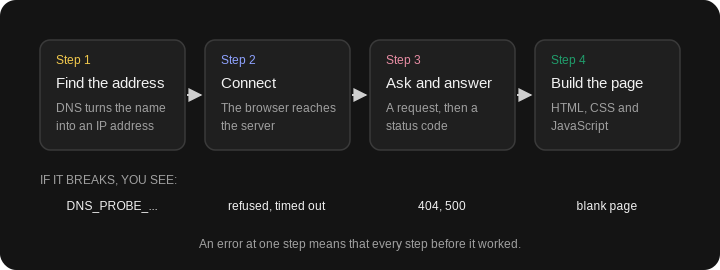
Step 2 needs a new word. Before your browser sends a request, it opens a connection to the server. A connection is a line for messages, like a phone call when the other person picks up.
The steps always happen in this order. So an error gives you two clues at once:
-
Which step broke.
-
That every step before it worked.
Think of a pizza delivery:
| What happens | Step |
|---|---|
| The driver can’t find the street. | Step 1: DNS |
| The driver finds the house, but nobody opens the door. | Step 2: connect |
| Someone opens the door, but says “we didn’t order that” or “we can’t take it now”. | Step 3: status code |
| You get the box, but the pizza inside is a mess. | Step 4: build the page |
Where this comparison stops working: a pizza comes in one trip. A web page needs dozens of requests: one for the HTML, then one for each other file. Any one of them can fail at any step.
In short: the trip has four steps: find the address, connect, ask and answer, build the page. An error tells you which step broke, and that all earlier steps worked.
Step 1 broke: the name couldn’t be found
You’ll see this error:
This site can't be reached
Check if there is a typo in my-cat-club.example.
DNS_PROBE_FINISHED_NXDOMAIN
Sometimes it says this instead:
This site can't be reached
my-cat-club.example's server IP address could not be found.
You might also see the code ERR_NAME_NOT_RESOLVED. All of these mean the same thing: DNS didn’t give back an IP address.
Common causes:
-
A typo in the name
-
The name has no DNS records, or nobody set them up
-
Somebody changed the records recently, and a cache somewhere still holds an old answer
Where to look:
-
Check every letter of the name.
-
Look up the name on
dns.google, as you did in the DNS lesson."Status": 3means NXDOMAIN. -
If it’s the name of your own app, check its DNS records where you manage the domain.
Not in your code. The browser never reached a server, so no code ran at all.
In short: DNS errors mean the browser couldn’t turn the name into an IP address. Check the spelling and the DNS records, not the code.
Step 2 broke: nobody answered
DNS found an address. But when the browser tried to connect, nothing answered.
“Refused to connect”
This site can't be reached
localhost refused to connect.
ERR_CONNECTION_REFUSED
First, a new word. localhost means “this same computer”. When you build an app on your laptop, you usually open it at an address like localhost:3000. The browser then talks to a server that runs on your own laptop. (The number after the colon picks which program on the computer to talk to.)
“Refused” means the browser reached the computer, but no program there was ready to answer. On your laptop, that almost always means your app isn’t running. Maybe you closed the window where it ran. Maybe the app crashed. Start it again. Your AI tool can tell you the command (the line you type to start the app).
“Took too long to respond”
This site can't be reached
my-cat-club.example took too long to respond.
ERR_CONNECTION_TIMED_OUT
This time the browser waited, and got no reply at all. These are the usual causes:
-
The server is switched off, or too busy to answer.
-
Something between you and the server blocks the connection.
-
The DNS record points to the wrong IP address. So the browser tries to reach a server that isn’t there.
And if your own internet is off
Chrome shows No internet, with a little dinosaur. Your request never left your device. Check your Wi-Fi first.
In short: “refused” means the browser reached the computer, but nothing answered. On your laptop, your app probably isn’t running. “Timed out” means nothing replied at all.
Step 3 broke: the server answered with an error
If you see a status code, that’s good news. Steps 1 and 2 worked. The server received your request and answered. But the answer wasn’t a good one.
Remember the first digit:
| Status code | What it means | Where to look |
|---|---|---|
4xx, like 404 Not Found |
Problem with the request | The address. Does that page really exist? |
5xx, like 500 Internal Server Error |
Problem inside the server | The code of the server and its logs |
Many websites show their own friendly page for these errors. Sometimes Chrome shows its own page instead, like this one for a 500:
This page isn't working
my-cat-club.example is currently unable to handle this request.
HTTP ERROR 500
For a 5xx error, the best clue is in the logs of the server. Logs are the messages that the code of the server writes while it runs. When the code crashes, the logs usually say exactly where, and why. You’ll find them where your app runs. On your laptop, they are in the window where you started the app. When your app is online, they are on the website of the company that runs it.
Other codes that start with 5, like 502 and 503, also point to a problem on the server’s side.
One more Step 3 error. Sometimes Chrome says a site “redirected you too many times”. Two addresses send the browser to each other again and again, until the browser stops. The fix is in the settings or code of the website.
Go deeper: The app said “Saved!”. The note was never saved (Level 2) covers status codes in detail.
In short: a status code means the server answered. For 4xx, check the address. For 5xx, check the code of the server and its logs.
Step 4 broke: a blank or broken page
Sometimes there’s no error page at all. The Network tab shows every request with status 200. But the page is blank, or half-broken.
Steps 1 to 3 worked. Something went wrong while the browser built the page. Now you need the Console. Open developer tools and click the Console tab. Look for messages in red.
You’ll often see these two messages:
Failed to load resource: the server responded with a status of 404 (Not Found)This means the server didn’t find one of the files for the page. Maybe a CSS file, a script or an image. (On some websites the words in brackets are missing, and you see 404 (). It means the same thing.) The page itself loaded, but this piece is missing. In the Network tab, find the row with 404. Then check the name and path of that file.
Uncaught TypeError: Cannot read properties of undefined (reading 'map')This means the JavaScript crashed. In plain English:
-
undefinedmeans “nothing is here”. The code expected some data, but found nothing. -
reading 'map'is what the code tried to do with that data. -
Uncaughtmeans nothing in the code was ready to deal with the error.
This often happens when the code tries to use data before the data arrives. In apps built with React, a crash like this can remove the whole page from the screen. That’s the well-known blank white screen.
Next to each error, the Console shows a file name and line number. Click it to see the exact line that failed.
Go deeper: The error message is telling you what’s wrong. Read it first (Level 1) shows how to read error messages like these, line by line.
In short: a blank or broken page with all-
200requests means the browser couldn’t build the page. Read the red errors in the Console.
What good looks like: the detective routine
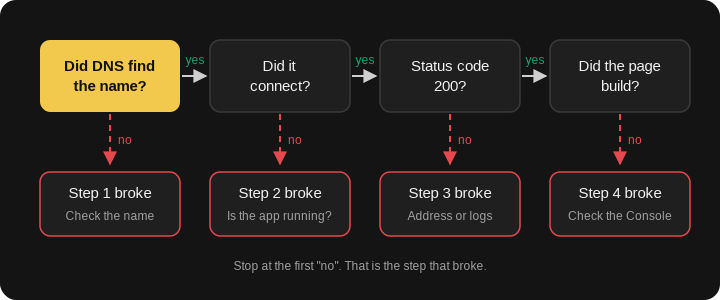
When something breaks, ask four questions, in order:
-
Did DNS find the name? A
DNS_PROBE_...orERR_NAME_NOT_RESOLVEDerror means no. Check the spelling and DNS records. -
Did the connection work? “Refused” or “timed out” means no. Is the app or server running?
-
What status code came back? Look in the Network tab. For 4xx, check the address. For 5xx, check the logs of the server.
-
Did the page build? If everything is
200but the page looks wrong, check the Console.
Stop at the first “no”. That’s your step.
What not to do:
-
Don’t ask the AI to “fix the code” for a DNS problem. No code ran.
-
Don’t change random settings and hope. Every change you don’t need makes the real problem harder to find.
-
Don’t paste only “it doesn’t work”. Paste the exact error, and say which step broke.
Compare these two messages to an AI:
-
“My site is broken, please fix it.”
-
“My page is blank. All requests return 200. The Console shows: Uncaught TypeError: Cannot read properties of undefined (reading ‘map’) in App.jsx, line 12.”
The first message makes the AI guess. The second one leads it directly to one line of code.
In short: check the four steps in order, and stop at the first one that failed. Then tell your AI the step and the exact error.
Try it yourself: break each step on purpose
You need a laptop or desktop computer with Chrome. Nothing here can harm your computer.
Break step 1: DNS
Type this into the address bar, with the https://, and press Enter:
https://my-cat-club.invalidNames that end in .invalid can never exist. You’ll see “This site can’t be reached” with a DNS error code, such as DNS_PROBE_FINISHED_NXDOMAIN.
Break step 2: connecting
Type this and press Enter:
http://localhost:12345You’ll see “localhost refused to connect”, unless a program on your computer uses that number. The browser reached your computer, but nothing was there to answer.
Break step 3: status code
- Open developer tools, then the Network tab.
- Go to
example.com/this-page-does-not-exist. - Look at the Status column:
404. The browser reached the server, and the server answered “nothing here”.
Break step 4: make JavaScript complain
- On any page, open developer tools and click the Console tab.
- Type
helloand press Enter.
You’ll see a red error: Uncaught ReferenceError: hello is not defined. You asked JavaScript to use something called hello, and nothing with that name exists. This only happened in your own tab. Nothing else changes.
Takeaways
Key terms
| Term | Meaning |
|---|---|
| Connection | The line your browser opens to a server before it sends requests |
| localhost | “This same computer”, where your app runs while you build it |
| Logs | Messages that the code of a server writes while it runs, including its errors |
| NXDOMAIN | The DNS answer for “this name doesn’t exist” |
Which step broke?
| You see | Step | Where to look |
|---|---|---|
DNS_PROBE_FINISHED_NXDOMAIN, ERR_NAME_NOT_RESOLVED |
1: DNS | Spelling, DNS records |
ERR_CONNECTION_REFUSED |
2: Connect | Is your app running? |
ERR_CONNECTION_TIMED_OUT |
2: Connect | Is the server on? Is the IP address right? |
4xx, like 404 |
3: Status code | The address. Does the page exist? |
5xx, like 500 |
3: Status code | The code and logs of the server |
Blank or broken page, all 200 |
4: Build the page | The Console |
Ask your AI
-
“Here is the exact error I see: [paste it]. Which step fails: DNS, the connection, the response from the server, or building the page?”
-
“I get [status code] for [path]. Here are my server logs: [paste them]. What’s the cause?”
-
“My page is blank. The Console shows: [paste the error]. Explain it in simple words. Then show me the line to fix.”
Going deeper (optional, for readers who want more detail)
“Your connection is not private.” This Chrome warning often comes with a code like NET::ERR_CERT_AUTHORITY_INVALID or ERR_CERT_COMMON_NAME_INVALID. It happens during step 2, while the browser sets up a secure HTTPS connection. The certificate of the server (its proof of identity) failed the browser’s checks. What the padlock icon really protects, and what it doesn’t (Level 2) explains certificates.
More 5xx codes. Some apps have another server in front of them. This middle server is often called a proxy. A hosting platform (a company that runs your app online) often adds one.
-
502 Bad Gateway: a server in the middle asked another server for the answer, and got a bad reply. -
503 Service Unavailable: the server isn’t ready. For example, it has too much work, or it is down for maintenance. -
504 Gateway Timeout: a server in the middle waited too long for another server.
These codes often appear when a hosting platform or proxy sits in front of your app, and your app crashed or is too slow.
Ports. In localhost:3000, the 3000 is a port: a number that picks which program on the computer gets the connection. Chrome blocks a few port numbers for safety (it shows ERR_UNSAFE_PORT). So don’t be surprised if one doesn’t work.
Other browsers. Firefox, Safari and Edge use their own words for these errors, but the steps are the same. Edge is built on the same engine (the core code that loads and shows pages) as Chrome. So its messages are often similar.
Why “Uncaught”. JavaScript lets code “catch” errors and handle them, for example to show a friendly message. When nobody catches an error, it stops that piece of code. Then the browser reports it in the Console.
References (9)
- error_page_strings.grdp: Chromium source code. The wording of Chrome’s error pages, such as “refused to connect”, “took too long to respond” and “redirected you too many times”.
- localized_error.cc: Chromium source code. Which error page Chrome shows for
DNS_PROBE_FINISHED_NXDOMAIN(the “Check if there is a typo” message), and the “HTTP ERROR 500” line. - net_error_list.h: Chromium source code. The
ERR_codes, includingERR_NAME_NOT_RESOLVED,ERR_CONNECTION_REFUSED,ERR_CONNECTION_TIMED_OUTandERR_UNSAFE_PORT. - RFC 2308: Negative Caching of DNS Queries: IETF. NXDOMAIN means the name doesn’t exist.
- RFC 6761: Special-Use Domain Names: IETF. Names ending in
.exampleand.invalidare reserved and never belong to a real website. - HTTP response status codes: MDN Web Docs. The meaning of 404, 500, 502, 503 and 504.
- message-template.h: V8 source code. The exact wording of “Cannot read properties of undefined (reading ’…’)” and ”… is not defined” errors in Chrome.
- ReferenceError: “x” is not defined: MDN Web Docs. Why JavaScript reports that a name is not defined.
- Component: catching rendering errors with an error boundary: React. A rendering error removes a React app’s UI from the screen unless an error boundary catches it.