Level 2 · Builder
What the padlock icon really protects, and what it doesn't
What the padlock icon really protects, and what it doesn’t
Before you start This lesson uses a few words from earlier lessons:
- HTTP: how a browser and a server talk. The browser sends a request, and the server sends back a response. (Every website is a conversation. Here’s how it goes)
- Domain name and DNS: a domain name is a website’s name. DNS is the system that turns that name into an IP address. (How does your browser find one computer out of billions?)
- Cookie: a small piece of data that the browser stores. The browser sends it back to the same website, often to keep you logged in. (Never store a password. Here’s what to store instead)
- Browser console: the developer tools panel where the browser prints errors. (The error message is telling you what’s wrong. Read it first)
Two people at the same café
You are at a café, on the free Wi-Fi. You open your app and log in.
At the next table, someone runs a program that records every message that passes through the café’s Wi-Fi. This is not science fiction. Free tools can do it.
If your app used plain http://, that person could read your email, your password and the cookie that keeps you logged in. With the cookie, the person could act as you without ever knowing your password.
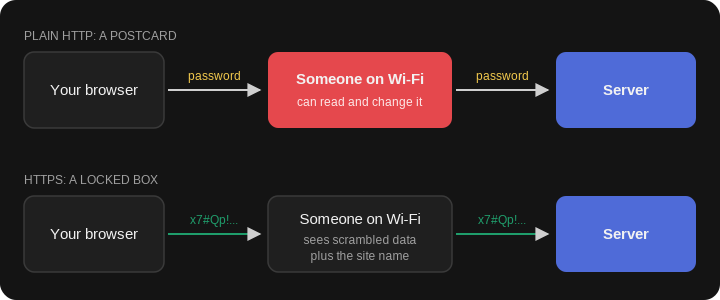
Your app uses https://, so the person sees only scrambled data, plus the name of the website that you connected to.
Now a different story. You get an email: “Your account is locked. Log in here to fix it.” The link opens a page that looks like your bank. The address bar shows the same secure icon that your real bank shows. You type your password. The page belonged to a scammer.
A fake message and page that trick you into giving away your login are called phishing.
Both stories are about HTTPS. In the first story, HTTPS did its job. In the second story, it also did its job, and you were still robbed. This lesson explains what HTTPS protects and what it does not protect. It also shows how HTTPS breaks in apps.
HTTP is a postcard
When your browser sends an HTTP request, the request travels through many computers. These include the café’s Wi-Fi router, your internet provider and the networks in between. Each one passes the message on.
Plain HTTP is like a postcard. Everyone who handles it can:
- read it: your password, your cookies, the page that you asked for
- change it: add an advert, replace a download with a virus, or change a bank account number on a page
You and the server do not notice any of this.
HTTPS: the same message in a locked box
HTTPS is HTTP sent through a secure connection. The HTTP part does not change: the methods, headers and status codes are the same. But before the browser sends any HTTP message, the browser and the server set up a protected channel. Everything travels inside that channel.
The rules for that protected channel are called TLS (Transport Layer Security). You also see the older name SSL. SSL itself is outdated. But people and dashboards (the control panels of hosting services) still say “SSL certificate” when they mean a TLS certificate.
TLS gives you three promises:
- Encryption: nobody on the way can read the messages. Encryption means scrambling data so that only someone with the right secret key can turn it back.
- Integrity: nobody on the way can secretly change the messages.
- Authentication: you really talk to the server for that domain name, not to someone who pretends to be it.
The third promise is the one that people forget. Encryption alone is not enough. If you encrypt your password and send it to an impostor, the impostor can still read it.
How the box gets locked
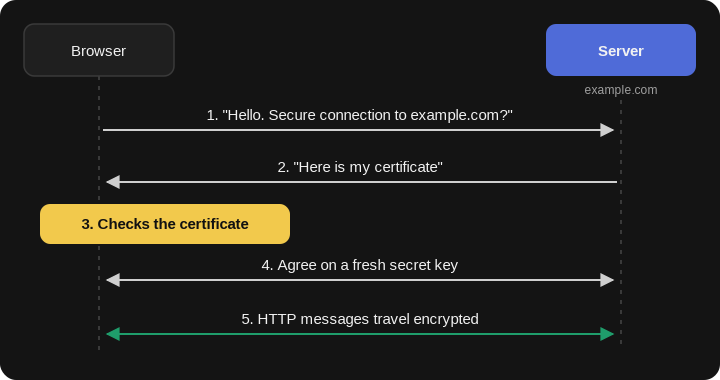
The first moments of a TLS connection are called the handshake. In a very simple form, it goes like this:
- The browser says: “Hello. I want a secure connection to example.com.”
- The server answers: “Here is my certificate, which proves that I am example.com.”
- The browser checks the certificate.
- The browser and the server agree on a fresh secret key for this connection only.
- All HTTP messages now travel encrypted with that key.
The clever part is how two computers that never met can agree on a secret while others listen. They use a pair of matching keys:
- a private key, which the server keeps secret and never sends anywhere
- a public key, which the server shows to everyone
Only the private key can unlock data that was locked with the public key. Also, the server can use its private key to “sign” data. Anyone can check that signature with the public key.
Think of a shop that gives away open padlocks for free. Anyone can take one, put a message in a box and close the padlock. Only the shop has the key that opens it.
Where this comparison stops working: real TLS uses these key pairs mostly to prove identity and to agree on a shared secret. Then the shared secret encrypts the actual messages, because that is much faster. You do not need the details to build apps. You need to know that the private key must stay secret.
Certificates: an ID card for a domain
In the handshake, the server sent a certificate. A certificate is a small file that says:
- which domain names it is for, like
example.comandwww.example.com - the server’s public key
- who issued it
- when it is valid: a start date and an end date
A certificate is like a passport. Anyone can write “I am example.com” on a piece of paper. People trust a passport because a government issued it and it is hard to fake.
For websites, the “government” is a certificate authority (CA). A CA is an organization that checks that you control a domain, and then signs your certificate. Your browser and your operating system (like Windows or macOS) come with a list of CAs that they trust. When a server sends a certificate, the browser checks three things:
- Is it signed by a CA that I trust?
- Is it for the domain name in the address bar?
- Is today between its start and end dates?
If any answer is no, the browser shows a full-page warning instead of your site.
How a CA checks that you own the domain
A CA cannot visit your office. Instead, it gives you a small test that only the domain’s real owner can pass. For example:
- “Put this exact file at this address on your website”, or
- “Add this exact DNS record to your domain” (a DNS record is one entry in your domain’s DNS settings)
If the file or the record appears, you control the domain, and the CA signs your certificate.
Let’s Encrypt: free and automatic
In the past, certificates cost money, and people installed them by hand. Let’s Encrypt, a nonprofit CA, changed that. It issues certificates for free. The whole process, including the domain test, runs automatically through a standard called ACME. A small program on the server asks for the certificate, passes the test and installs the certificate, without a human.
A hosting platform is a service that runs your app online. Hosting platforms such as Vercel, Netlify and Cloudflare do all of this for you. That is why your .vercel.app address and your custom domain got HTTPS without any work from you.
Certificates don’t last long, on purpose
For years, Let’s Encrypt certificates have lasted 90 days. That time is getting shorter. Here is Let’s Encrypt’s announced schedule, at the time of writing:
| Date | Default Let’s Encrypt lifetime |
|---|---|
| Until 10 February 2027 | 90 days |
| From 10 February 2027 | 64 days |
| From 16 February 2028 | 45 days |
This follows new industry rules. From March 2029, these rules limit every publicly trusted HTTPS certificate, from any CA, to at most 47 days.
Why shorter? Someone may steal a private key, or a CA may issue a certificate by mistake. A short lifetime limits how long anyone can misuse that certificate. The cost is that nobody can renew by hand any more. Renewal must be automatic.
What HTTPS doesn’t protect
This is where the scam story fits.
| HTTPS does not tell you… | Why |
|---|---|
| that the site is honest | A scammer can get a free certificate for paypa1-login.example as easily as you get one for your domain. The certificate only proves that the name matches. |
| which site you visited is secret | The domain name usually still leaks. Your device asks DNS for it, and the start of the handshake often names it. The server’s IP address is visible too. The path, the page and everything that you type are hidden. |
| that your data is safe after it arrives | HTTPS protects data while it travels. After the data reaches the server, a leaked database, a bug or an attack such as SQL injection can still expose it. |
| that the user’s own device is safe | Harmful software (malware) or a bad browser extension on the user’s computer sees the page before encryption and after it. |
The padlock caused so much confusion that Google changed it. In 2021 research, Google found that only 11% of study participants understood what the padlock really meant. Many thought that it meant “this site is safe”. Google also noted that nearly all phishing sites use HTTPS. So in 2023, Chrome 117 replaced the padlock with a neutral “tune” icon that opens the site’s settings. Chrome still warns users when a connection is not secure.
How it goes wrong
Bug 1: Mixed content
Your app works on your laptop. You deploy it (put it online). On the live site, a chart is missing and some data never loads. The console shows a Mixed Content error. The page loaded over https://, but it asked for a script at an http:// address, so the browser blocked the script.
Mixed content means that an HTTPS page loads something over plain HTTP. One insecure script is enough to break all three promises. An attacker could change that script on its way and take control of the whole page.
Browsers handle it like this:
- Images, audio and video: the browser tries the
https://version instead. If that version does not exist, the file does not load. - Scripts, stylesheets (files that style the page), iframes (pages inside pages) and
fetch()requests: blocked.
AI-written code often causes this with an address that is written directly in the code and left over from development:
const API_URL = "http://api.example.com"; // ❌ http in production

const res = await fetch(`${API_URL}/notes`);
On an https:// page, the browser blocks this fetch(). To fix it, use https://. If the API is on the same domain, use a path like fetch("/api/notes"). A path automatically uses the page’s own scheme.
Bug 2: Turning off certificate checks
Your backend (the code that runs on your server) calls another service. The call fails with an error such as SELF_SIGNED_CERT_IN_CHAIN (“self signed certificate in certificate chain”) or UNABLE_TO_VERIFY_LEAF_SIGNATURE (“unable to verify the first certificate”). You paste the error into your AI tool. A common answer is this:
// ❌ Never do this
process.env.NODE_TLS_REJECT_UNAUTHORIZED = "0";

// ❌ Or this
const agent = new https.Agent({ rejectUnauthorized: false });
Both lines tell Node.js (the program that runs JavaScript on your server): “accept any certificate, even a fake one.” The error goes away. So does the third promise. Your app still encrypts, but it encrypts to whoever answers. Anyone in the middle can pretend to be the service and read every secret that your server sends to it. The Node.js documentation says that this setting “makes TLS, and HTTPS by extension, insecure”.
People often add these lines “temporarily”, and then the lines reach production (the live app that real users use). Do not add them. Fix the real cause instead. Either the service’s certificate is broken, or the service uses a private CA that you can add to the trusted list. Ask your AI how to do that.
Bug 3: The certificate expires or doesn’t match
Chrome shows a full-page warning instead of your site. Two common error codes appear under it:
NET::ERR_CERT_DATE_INVALID: the certificate has expired (or the visitor’s clock is wrong).NET::ERR_CERT_COMMON_NAME_INVALID: the certificate is for a different name. For example, it coversexample.combut notwww.example.com. (A name with an extra part in front, likewww.orapi., is called a subdomain.)
On hosting platforms, this is rare. It happens more often in two cases. In the first case, you run your own server and renewal stopped without any message. In the second case, your domain’s DNS records point somewhere that the platform did not expect, so the platform cannot pass the domain test.
Do not depend on a reminder email: Let’s Encrypt stopped sending expiry emails in June 2025. Set up your own expiry monitoring.
Bug 4: Telling users to click through warnings
“If you see a warning, click Advanced, then Proceed.” Never write this, even for a test site. It teaches users to ignore the one warning that protects them from impostors.
Bug 5: Login cookies that can travel over HTTP
Your session cookie is the cookie that keeps a user logged in. If it does not have the Secure setting, the browser may send it over a plain HTTP request. This can happen, for example, if a user types http:// by mistake. One unencrypted request on café Wi-Fi is enough to steal the cookie.
What good looks like
- HTTPS everywhere. Every page, every API, every image. Hosting platforms turn it on by default.
- HTTP sends users to HTTPS. If someone types
http://yourapp.com, the server should redirect them (send them on) tohttps://. Platforms do this for you. - No
http://addresses in your code, excepthttp://localhostfor development. Keep API addresses in environment variables (settings that you keep outside your code), withhttps://in production. - Cookies are marked
Secure(andHttpOnly, as the login lesson explains). - Certificate checks stay on. No
rejectUnauthorized: false, noNODE_TLS_REJECT_UNAUTHORIZED=0. - Renewal is automatic and watched. If you run your own server, use an ACME tool. Also use a monitoring service that warns you before expiry.
When everything above works, you can add one more header:
Strict-Transport-Security: max-age=31536000; includeSubDomainsThis is HSTS (HTTP Strict Transport Security). It tells the browser to connect to this domain only over HTTPS for the next year (31,536,000 seconds). The browser must do the same for all the subdomains. After a browser sees this header once over HTTPS, it never sends a plain HTTP request to your domain again. It also does not let users click through certificate warnings.
HSTS is powerful. Turn on HSTS only when every subdomain has working HTTPS. Many hosting platforms let you add it in their settings.
Test your own app
You need an app of your own for this part. No app yet? Start with Your first app in an afternoon, with an AI doing the typing. Built it in an AI app builder? Ask its AI to do each step below for you, or to add the missing part first (for example, a login).
1. Read your certificate (2 minutes).
- Open your live app in Chrome.
- Click the icon on the left of the address bar.
- Click the item about the connection being secure.
- Click the item about the certificate.
- Find the three details below.
- Issued to: your domain name
- Issued by: the CA, for example Let’s Encrypt or Google Trust Services
- Validity period: when it started and when it ends
Notice how short the period is.
2. Try plain HTTP. Type your address with http:// at the start. You should arrive at the https:// version.
3. See mixed content blocking.
- Open any
https://site. - Open the console (F12 on Windows, Cmd+Option+I on Mac).
- Run this code:
fetch("http://example.com");You see a Mixed Content error. Now open your own app. Click through every page, and watch the console for the same error.
4. Search your code. Search your project for http:// (ignore http://localhost), rejectUnauthorized and NODE_TLS_REJECT_UNAUTHORIZED. Each match needs a reason.
Optional: for a full report on your domain’s HTTPS setup, enter your domain in the free Qualys SSL Labs Server Test at ssllabs.com/ssltest.
Takeaways
Key terms
- HTTPS: HTTP sent inside a TLS connection
- TLS: the rules that give a connection encryption, integrity and authentication (older name: SSL)
- Handshake: the start of a TLS connection, where the server shows its certificate and both sides agree on a key
- Certificate: a signed file that ties a domain name to a public key, with start and end dates
- Certificate authority (CA): an organization that browsers trust to check domain ownership and sign certificates
- Mixed content: an HTTPS page that loads something over plain HTTP
- HSTS: a header that tells browsers to use only HTTPS for your domain
Red flags in AI-written code
http://addresses for APIs, scripts or images (other than localhost)NODE_TLS_REJECT_UNAUTHORIZED = "0"orrejectUnauthorized: false- Session cookies without
Secure - Instructions that tell users to click through a certificate warning
- “The site has HTTPS, so it’s secure”
Which step broke?
- “Mixed Content” in the console → an
http://address in your code or content - A full-page warning with
ERR_CERT_DATE_INVALID→ expired certificate. Check automatic renewal. ERR_CERT_COMMON_NAME_INVALID→ the certificate does not cover this exact name. Checkwww, other subdomains and your DNS records.- Backend error about a self-signed or unverifiable certificate → fix the certificate or trust the right CA. Do not turn checks off.
Ask your AI
- “Search my project for http:// addresses, rejectUnauthorized and NODE_TLS_REJECT_UNAUTHORIZED, and explain each one.”
- “Are my session cookies set with Secure and HttpOnly?”
- “Who renews my HTTPS certificate, and how would I find out if renewal failed?”
Going deeper (optional, for readers who want more detail)
TLS versions. The current version is TLS 1.3 (RFC 8446), and most connections use it. Some sites still use TLS 1.2. TLS 1.0 and 1.1 should no longer be used.
Chains and intermediates. CAs rarely sign your certificate with their most important key, the “root”. Instead, they use an intermediate certificate that the root signed. Your server must send its own certificate plus the intermediate. Together, these are called the chain. Suppose that a server forgets the intermediate. Then some clients (programs that connect to the server) show “unable to verify the first certificate” errors, even though some browsers still connect.
Hiding the site name. The domain name leaks in two common places. One is the DNS lookup. The other is a field called SNI at the start of the TLS handshake. SNI tells a shared server which certificate to use. Encrypted DNS and a newer standard, Encrypted Client Hello (RFC 9849), can hide both. But neither is used everywhere yet.
More about Let’s Encrypt lifetimes. You can already choose 45-day certificates (the tlsserver profile, from May 2026) or 6-day certificates (the shortlived profile). Let’s Encrypt recommends that renewal tools use ARI (ACME Renewal Information). ARI tells the renewal tool when to renew. Without ARI, renew about two-thirds of the way through the certificate’s lifetime. A fixed “every 60 days” schedule does not work with 45-day certificates.
The industry schedule. The CA/Browser Forum is the group of CAs and browser makers that sets the rules. In April 2025, it voted to cut the maximum certificate lifetime from 398 days to 47 days. The cut happens in steps from March 2026 to March 2029.
HSTS preload. HSTS only works after a browser’s first secure visit. To protect even the first visit, you can submit your domain to the HSTS preload list. Browsers have this list built in. The list needs a max-age of at least one year, includeSubDomains and the preload token. Removing a domain from the list is slow. The change takes months to reach users through browser updates. Be sure before you submit.
Upgrading insecure requests. The header Content-Security-Policy: upgrade-insecure-requests asks the browser to try https:// for every http:// address in your pages, including scripts. It is a useful backup, but it does not replace fixing the addresses.
Localhost is treated as secure. Browsers treat http://localhost and http://127.0.0.1 as secure for most purposes. That is why development works without HTTPS.
References (12)
- Transport Layer Security (TLS): MDN. TLS 1.3 is the current, most used version; TLS 1.0 and 1.1 should no longer be used.
- Mixed content: MDN. Images, audio and video are upgraded to HTTPS, while scripts, stylesheets, iframes and
fetch()are blocked;upgrade-insecure-requests; localhost counts as secure. - Strict-Transport-Security header: MDN. How HSTS works, why users can’t click through warnings, and the preload requirements.
- Command-line API: NODE_TLS_REJECT_UNAUTHORIZED: Node.js docs. Setting it to
0“makes TLS, and HTTPS by extension, insecure”. - Decreasing Certificate Lifetimes to 45 Days: Let’s Encrypt, 2 December 2025. The 64-day (10 February 2027) and 45-day (16 February 2028) dates, the opt-in
tlsserverandshortlivedprofiles, ARI and renewing at two-thirds of the lifetime. - Ballot SC081v3: Introduce Schedule of Reducing Validity and Data Reuse Periods: CA/Browser Forum, April 2025. Maximum certificate lifetime cut from 398 to 47 days, in steps from March 2026 to March 2029.
- An Update on the Lock Icon: Chromium Blog, May 2023. The 11% finding, phishing sites using HTTPS, and the tune icon in Chrome 117.
- net_error_list.h: Chromium source code. The meaning of
CERT_DATE_INVALIDandCERT_COMMON_NAME_INVALID. - Ending Support for Expiration Notification Emails: Let’s Encrypt, January 2025. Expiry reminder emails ended on 4 June 2025.
- TLS (SSL): Node.js. The
SELF_SIGNED_CERT_IN_CHAINandUNABLE_TO_VERIFY_LEAF_SIGNATUREcertificate errors. - RFC 9849: TLS Encrypted Client Hello: IETF. The standard that hides the site name in the TLS handshake.
- HSTS Preload List Submission: hstspreload.org. Preload requirements, and that removal takes months to reach users.