Level 1 · Foundations
How does your browser find one computer out of billions?
How does your browser find one computer out of billions?
Before you start This lesson uses words from You pressed Enter. What happened in the next second?.
- Server: a computer that waits for requests. It answers them.
- Client: the device that asks. It is your phone or laptop.
- Browser: the app you use to open websites. Chrome and Safari are browsers.
- Request: a message from your browser to a server. It asks for something.
One computer out of billions
You type youtube.com and press Enter. About a second later, videos appear.
In the last lesson, you learned that the page comes from a server. But billions of devices are connected to the internet. How does your browser find the one right computer so fast?
Think about a birthday card that you send by post. “To Grandma” on the envelope isn’t enough. The post office needs her full address: street, house number, city. Without it, the card goes nowhere.
The internet works the same way. A request needs an exact address. Without one, the internet can’t deliver it.
The last lesson said your browser looks up the address in “the internet’s address book”. This lesson explains how that address book works.
In short: before your browser can ask a server for anything, it must find the exact address of that server.
What’s inside a web address
Let’s look closely at a web address:
https://www.example.com/gamesA full web address like this is called a URL. It has three main parts:
| Part | In our example | What it means |
|---|---|---|
| Start | https:// |
Which rules the browser uses to talk to the server. The next lesson covers these rules. |
| Name | www.example.com |
The name of the website. |
| Path | /games |
Which page you want on that website. |
The last part is called the path. It works like a room number inside a building. The name gets you to the building. The path gets you to the right room.
If a URL has no path, like https://www.example.com, you get the main page of the website.
Go deeper: What the padlock icon really protects, and what it doesn’t (Level 2) explains the “s” in
https.
In short: a URL is a full web address. It says which rules to use, which website, and which page on that website (the path).
Domain names: names for people
The middle part of the URL, www.example.com, is called the domain name. It is the name of the website. People can read it and remember it.
A domain name has parts with dots between them. Read it from right to left, from the biggest part to the smallest:
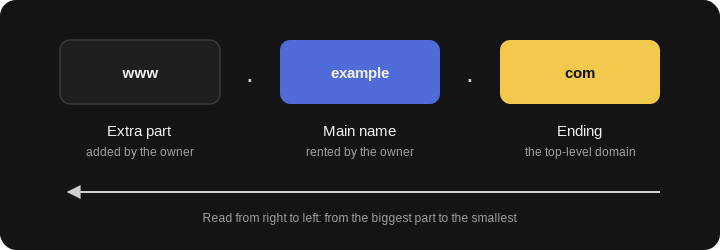
The ending on the right is called the top-level domain. You have probably seen some of these:
-
.com,.organd.net, used all over the world -
Country endings, like
.infor India,.ukfor the United Kingdom and.jpfor Japan
The main name comes right before the ending, like example or youtube. Website owners rent their main name for one or more years at a time. They pay again to keep it.
The owner can then add extra parts on the left. That’s how en.wikipedia.org and de.wikipedia.org can be different parts of the same website.
In short: a domain name is the name of a website for people, like
example.com. Read it from right to left. The ending on the right is the top-level domain.
IP addresses: numbers for computers
Here’s the surprise. Computers don’t use domain names to find each other. They use numbers.
Every server on the internet has a number that works as its address. It’s called an IP address. (“IP” stands for Internet Protocol. A protocol is a set of rules. The Internet Protocol is the set of rules for sending messages across the internet.)
An IP address looks like this:
203.0.113.10That’s four numbers with dots between them. Each number is between 0 and 255. This style gives about 4.3 billion different addresses.
That sounds like a lot. But the world has more phones, laptops, game consoles and servers than that. So there is also a newer, much longer style of IP address. It looks like this:
2001:db8::10You’ll see both styles. They do the same job.
The addresses above are special. They are only for examples in lessons and guides, so they never belong to a real computer. Real addresses look the same, with different numbers.
Where the “home address” idea stops working: a big website like YouTube doesn’t live in one house. It has many servers, so its name can lead to many IP addresses. The opposite happens too: one server can hold many small websites at the same IP address.
In short: computers find each other with numbers called IP addresses, like
203.0.113.10. Domain names are for people. IP addresses are for computers.
DNS: the internet’s contacts app
So your browser has a name, www.example.com, but it needs a number. How does it get one?
It asks a system called DNS, short for Domain Name System.
DNS works like the contacts app on your phone. You don’t remember the phone numbers of your friends. You tap a name, and the phone finds the number for you. Nobody remembers IP addresses either. DNS finds them for you.
Here’s what happens when you type www.example.com:
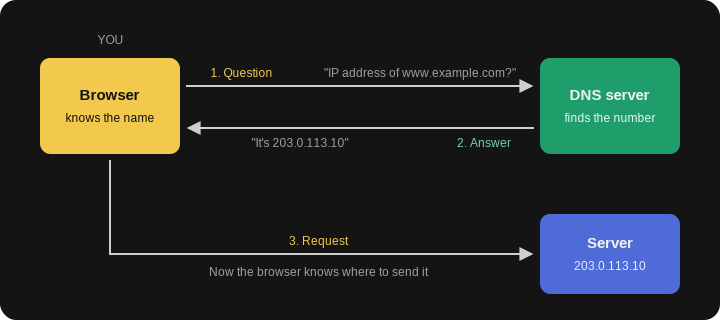
The computers that answer these questions are called DNS servers. Their only job is to answer “What’s the number for this name?” Your internet company usually runs one for you. There are also free public ones from companies such as Google and Cloudflare.
Where the contacts comparison stops working: your contacts app lives on your phone, and you typed the numbers in yourself. DNS is shared by the whole world. Millions of DNS servers work together, and no single one knows every answer. If a DNS server doesn’t know an answer, it asks other DNS servers. It continues until it finds the DNS server in charge of that name.
In short: DNS turns domain names into IP addresses, like a contacts app for the internet. The computers that answer these questions are called DNS servers.
Who writes the entries?
In your contacts app, you add each entry yourself. In DNS, the owner of each website adds the entries for their own name.
An entry in DNS is called a DNS record. A simple one says:
www.example.com → 203.0.113.10That means: “If anyone asks for www.example.com, send them to 203.0.113.10.”
Owners manage their records on the website of the company where they rent their domain name.
One day you may build an app and give it its own name. To connect that name to your app, you add DNS records like this one. If a record is missing, or points to the wrong number, people can’t reach your app. This is true even if your app works perfectly.
In short: a DNS record is an entry that connects a name to an address. The owner of the domain name creates and changes these records.
Remembering answers
A new DNS question for every visit would be slow. And the answer rarely changes between visits.
So your browser and your computer remember recent answers for a while. A copy of an answer that you keep to use again later is called a cache. (“Cache” sounds like “cash”.)
The next time you open the same site, the answer comes from the cache. No question needs to travel anywhere.
But a computer can’t remember an answer forever. What if the owner moves the website to a new server with a new IP address? So every DNS answer comes with a timer. The timer says how many seconds the computer may remember the answer. This timer is called the TTL, short for “time to live”.
When the timer runs out, the computer throws the remembered answer away. On the next visit, it asks DNS again and gets a fresh answer.
This has one side effect. When an owner changes a DNS record, some people still remember the old answer. They keep it until their timer runs out. That’s why DNS changes can take minutes, or even hours, to reach everyone.
In short: your browser and computer keep a cache of recent DNS answers to save time. Each answer has a TTL timer. Until it runs out, the computer can still use an old answer.
How it goes wrong
Every part of this lesson can break. When it does, the browser never reaches a server.
A typo in the name. You type youtub.com instead of youtube.com. Maybe DNS has no answer for that name. Or maybe the name belongs to a completely different website. Always check the spelling first.
The name has no records. The name exists, but nobody added a record that points to a server. DNS has no number to give back. So the browser shows an error such as “This site can’t be reached”.
The record points to the wrong number. Maybe someone typed 203.0.113.11 instead of 203.0.113.10. Now the browser reaches the wrong computer, or no computer at all.
The record changed, but the old answer is still in a cache. You fixed a record five minutes ago. It works on the phone of your friend, but not on your laptop. Your laptop still uses the old answer from its cache.
All of these have one thing in common: the problem isn’t in any code. It’s in the name or its DNS records. A new version of the app won’t fix it.
Go deeper: “This site can’t be reached”: what broke, and where? (Level 1) shows the exact error messages for these problems.
In short: DNS problems happen before your browser reaches any server. The usual causes are typos, missing records, wrong numbers and old answers in a cache.
What good looks like
When a website can’t be found, check the name before anything else:
-
Check the spelling. Look at every letter in the domain name.
-
Ask DNS directly. Use a lookup tool (you’ll try one below). Does the name have an answer? Is it the IP address you expected?
-
Check the records. If the name belongs to your app, look at its DNS records. You find them where you manage the domain.
-
Give it time. If you changed a record recently, a cache may still hold the old answer. Try again later. Or try from another device, like your phone on mobile data instead of Wi-Fi.
When you ask an AI for help, say which step fails. “DNS can’t find my domain” tells it to look at DNS records. Then it won’t try to rewrite your code.
In short: for “can’t find the website” problems, check the spelling, ask DNS directly and check the records. Remember that changes take time.
Try it yourself
Experiment 1: Ask DNS a question
Google runs a free DNS service. Its website lets you ask DNS questions yourself.
- Go to
dns.google. - Type
example.cominto the box and press Enter. - Look at the result. Find the lines called
"data".
Each "data" line is an IP address that DNS gave back for example.com. You might see more than one. That’s the “one name, many servers” idea from earlier.
Next to each one, find "TTL". That’s the timer: how many seconds a computer may remember this answer.
Experiment 2: Ask about a name that doesn’t exist
- On
dns.google, look up a made-up name, likemy-cat-club.invalid. (Names that end in.invalidcan never exist.) - Look at the result.
You’ll see "Status": 3 and no "Answer" section. Status 3 is DNS saying “that name doesn’t exist”. Its official name is NXDOMAIN, short for “non-existent domain”. Remember this word. You’ll see it again in the lesson on errors.
Experiment 3: Find the IP address of a website in your browser
You need a laptop or desktop computer with Chrome for this one. You will use developer tools, the hidden browser panels from the first lesson.
- Open any website.
- Open developer tools: press F12 on Windows, or Cmd+Option+I on Mac.
- Click the Network tab. Then reload the page.
- Click the first row in the list. Then click the Headers tab.
- In the General section, find Remote address.
That’s the IP address your browser connected to. DNS found it a moment before the page loaded.
Takeaways
Key terms
| Term | Meaning |
|---|---|
| URL | A full web address, like https://www.example.com/games |
| Path | The part of a URL that says which page you want, like /games |
| Domain name | The name of a website for people, like example.com |
| Top-level domain | The ending of a domain name, like .com or .in |
| IP address | The number computers use to find each other, like 203.0.113.10 |
| DNS | The system that turns domain names into IP addresses |
| DNS server | A computer whose job is to answer DNS questions |
| DNS record | An entry that connects a name to an address |
| Cache | A remembered copy of an answer, kept to save time |
| TTL | How long a computer may remember a DNS answer |
Which part broke?
| What you see | What it means |
|---|---|
| The name is spelled wrong | Fix the spelling. |
| DNS says the name doesn’t exist (NXDOMAIN) | The name has no records, or nobody set it up. |
| DNS gives back the wrong IP address | The record points to the wrong place. |
| It works on one device but not another, right after a change | A cache still holds the old answer. Wait, or test from another device. |
Ask your AI
-
“Explain step by step what happens when my browser looks up a domain name, in simple words.”
-
“I looked up [your domain] on dns.google and got [paste the result]. What does this tell me?”
-
“I changed a DNS record [how long] ago, and some devices still show the old site. Why, and how long might it take?”
Going deeper (optional, for readers who want more detail)
IPv4 and IPv6. The two styles of IP address have names. The short style, like 203.0.113.10, is IPv4. It uses 32 bits (a bit is one 0 or 1 that a computer stores). That allows 2³², or about 4.3 billion, addresses. The long style, like 2001:db8::10, is IPv6. It uses 128 bits. You write it as groups of hexadecimal digits (0 to 9 and a to f) with colons between them. :: is a short way to write a run of groups that are all zero.
Example addresses. An RFC is an official document with rules for the internet. 203.0.113.0/24 is one of three IPv4 ranges for documentation only (RFC 5737). 2001:db8::/32 is the IPv6 range for documentation (RFC 3849). Names that end in .example, .test and .invalid are also reserved (RFC 2606, RFC 6761). example.com is set aside for examples.
Your home network. Devices at home usually have private addresses, such as 192.168.1.20. These work only inside your home network (RFC 1918). Your router has one public IP address and shares it with all your devices. It translates between private and public addresses. This sharing is called NAT (network address translation). It’s one reason the world didn’t run out of IPv4 addresses sooner.
localhost. The name localhost always means “this same computer”. It points to the special address 127.0.0.1 (or ::1 in IPv6). You’ll use it when you run apps on your own laptop.
The full lookup. If no cache has the answer, your computer asks a recursive resolver. This is a DNS server from your internet company, or a public one such as Cloudflare’s 1.1.1.1 or Google’s 8.8.8.8. If the resolver has no cached answer either, it asks these servers in order:
-
A root server, which says where to find the servers for
.com -
A TLD server for
.com(TLD means top-level domain), which says which servers are in charge ofexample.com -
The authoritative nameserver for
example.com, which gives the final answer
Common record types.
-
A record: name → IPv4 address
-
AAAA record: name → IPv6 address
-
CNAME record: name → another name (for example,
www.example.com→example.com)
Ports. One server can run many programs. A connection also needs a port number. The port says which program the connection is for. HTTPS uses port 443 by default, and plain HTTP uses port 80. So you rarely see ports in web addresses. On your laptop you’ll see them often, as in localhost:3000.
References (12)
- What is a domain name?: MDN Web Docs. How domain names are built, read from right to left, and rented for one or more years.
- What is DNS?: Amazon Web Services. How a lookup goes from a resolver to root, TLD and authoritative servers, and how answers are cached for their TTL.
- RFC 1035: Domain Names, Implementation and Specification: IETF. DNS records, the TTL field, and response code 3 (“Name Error”).
- RFC 2308: Negative Caching of DNS Queries: IETF. NXDOMAIN is the name for the “Name Error” response: the name doesn’t exist.
- RFC 5737: IPv4 Address Blocks Reserved for Documentation: IETF.
203.0.113.0/24is reserved for examples. - RFC 3849: IPv6 Address Prefix Reserved for Documentation: IETF.
2001:db8::/32is reserved for examples. - RFC 6761: Special-Use Domain Names: IETF. Names ending in
.exampleand.invalidare reserved, andlocalhostpoints to the loopback address. - RFC 1918: Address Allocation for Private Internets: IETF. Private address ranges such as
192.168.0.0/16used inside home networks. - JSON API for DNS over HTTPS (DoH): Google for Developers. The
Status,Answer,TTLanddatafields you see ondns.google. - Get Started, Public DNS: Google for Developers. Google’s free public DNS servers at
8.8.8.8. - 1.1.1.1 (DNS Resolver): Cloudflare. Cloudflare’s free public DNS resolver at
1.1.1.1. - RequestHeadersView.ts: Chrome DevTools source code. The “Remote address” label in the General section of the Headers tab.