Level 3 · Shipping
Why you should never test on your real users
Why you should never test on your real users
Before you start This lesson uses a few words from earlier lessons:
- Production: the live version of your app that real users visit. (It works on my laptop. Why can’t my friend open it?)
- Environment variables: settings and secrets kept outside your code, like
DATABASE_URLin a.envfile. (Your app’s secrets don’t belong in your code. Here’s where they go)- Preview deployment: a separate copy of your app, with its own web address, built from a branch or pull request. (From your laptop to a real website in one push)
- Migration: a file that changes your database’s structure, like adding a column. (You renamed one column and the live app crashed)
“Test test asdf”
You run a small app for language tutors. You ask your AI to add a feature: every Monday, the app sends an email reminder to each inactive student.
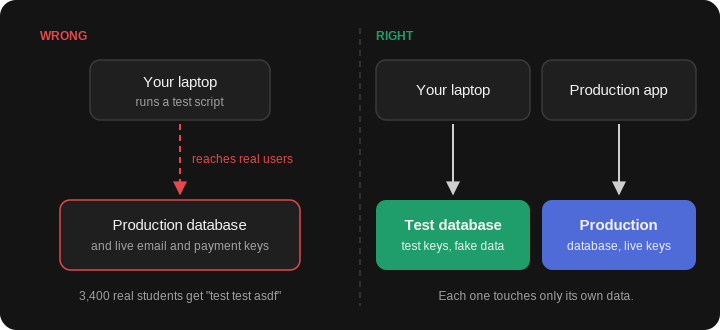
To try it, you run the email script (a small program) on your laptop. Months ago, you copied the production DATABASE_URL into your .env file. You did this because an empty app was boring to build. Also, the key for your email service in .env is the same key that production uses.
You press Enter. The script finds 3,400 real students. It sends each one an email that says “test test asdf”.
A minute later, you try the checkout page on your laptop with your own card. The payment key in .env is also the live one. So that charge was real too.
Nothing in your code was wrong. Your laptop was connected to the real world. This lesson shows you how to keep practice and real life apart.
An environment is a whole world, not a web address
When people say “environment”, they often mean “where the code runs”: your laptop, or the hosting platform. That is only one part.
An environment is everything that your running code touches:
- The code: which version runs
- The settings: its environment variables
- The data: which database it reads and writes
- The outside services: which payment, email and storage accounts its keys belong to
If you change the web address but keep the same database and keys, you are still in production. In the story above, a laptop on localhost reached the real students.
Most apps use three environments:
| Development | Staging | Production | |
|---|---|---|---|
| Where | Your laptop (localhost) |
A deployed copy, like a preview link | Your real domain |
| Who uses it | You | You, your team, testers | Real users |
| Data | Fake data you made | Fake data, shaped like real data | Real users’ data |
| Payment keys | Test keys | Test keys | Live keys |
| Emails | Not sent, or sent to a test inbox | Sent only to your team | Sent to real people |
| If it breaks | Nobody notices | Your team notices | Users notice |
Development is where you build. It breaks all the time, and that is fine.
Staging is a final practice run. It must be as close to production as possible: the same code, the same kind of hosting and the same database structure. The only difference is that no real person depends on it.
Production is the real show.
Think of a theater. You practice your lines at home. Then you do a dress rehearsal on the real stage, with costumes and lights, but with empty seats. Then the audience comes in.
Where the comparison stops working: in a theater, a rehearsal can’t perform for the audience by accident. In software, it can. One copied line in a .env file connects your “rehearsal” to every real user you have.
Same code, different settings
Your code must be the same in every environment. Only the settings change. You met this idea in Your app’s secrets don’t belong in your code. Here’s where they go. Now it becomes much more important.
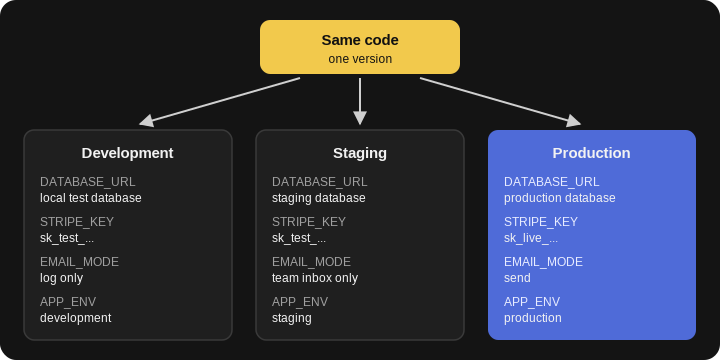
Here is what each setting means:
DATABASE_URL: every environment has its own database. This is the most important setting.STRIPE_KEY: payment services such as Stripe give you two kinds of keys. Stripe’s test keys start withsk_test_. Payments with test keys never move real money. Live keys start withsk_live_and charge real cards. Only production gets the live key.EMAIL_MODE: a setting that you add yourself. It stops environments other than production from sending emails to real people.APP_ENV: a variable that you create to tell your code which environment it is in. Later in this lesson, you will see why you need your own variable.
Most outside services work like Stripe here. Email, storage and login providers usually let you create a separate test account, project or key. Use one for each environment. Then a leak or a mistake in one environment can’t touch the others.
Preview deployments are your staging
You probably already have a staging environment. Remember: a pull request asks to merge the changes on your branch into main. When you open one, your hosting platform builds a preview deployment with its own address. That preview is a short-lived staging environment. It has real hosting and a real build, but not your real domain.
But a preview is safe only if its settings are separate. Both Vercel and Netlify let you give each environment variable a different value for production and for previews:
- Vercel has three built-in environments: Development, Preview and Production. You can set each variable for one, two or all three.
- Netlify calls them deploy contexts, such as
production,deploy-preview,branch-deployanddev.
So ask this question: what did you put in the Preview column? Maybe you chose “all environments” when you added DATABASE_URL. Then every preview of every unfinished branch writes to your real database.
A permanent staging site
Each pull request gets its own preview, and that preview is temporary. Some teams also want one staging site that always exists, at an address like staging.example.com.
A common way is a long-lived staging branch. You merge work into staging first and test it there. Then you merge staging into main. Vercel supports this on every plan: it gives a branch its own domain and its own variables. Its paid plans also let you create a named custom environment.
For a small app with one or two builders, preview deployments with a separate database are usually enough. A permanent staging site becomes useful when several people need to test together. It is also useful when you need to try a migration on a copy before production.
How it goes wrong
Mistake 1: One database for everything
This is the story from the start. It usually begins with a good reason: “I need real-looking data to build the dashboard.” Then one of these runs on production:
- a test script
- a migration that you want to try
- an AI agent that “cleans up old rows”
AI tools make the danger bigger. An AI agent (an AI tool that runs commands by itself) can run commands on your laptop. So it can also run them on the database that your .env file points to.
Go deeper: The AI deleted your production database. Now what? (Level 2) covers what to do when this has already happened.
Mistake 2: Live keys outside production
If live payment keys are on your laptop, every test checkout is a real charge. If a live email key is there, every test sends real emails.
Webhooks can go wrong too. A webhook is a message that a service like Stripe sends to your app when something happens. A live webhook setup can send real payment events to the code on your laptop, or test events to production.
Mistake 3: Previews with production settings
This mistake is hard to see, because the preview looks fine. You click “Sign up” on a preview, and a fake account appears in your real users table. It can be worse. A half-finished migration or a buggy “delete” button on a branch can change real data before anyone reviews the code.
Also, people share previews easily. A link in a pull request comment, a chat or a bug report gives access to all the data that the preview can reach.
Mistake 4: Real users’ data copied into tests
“Let’s copy production into staging so that the data is realistic.” This sounds sensible. But now your real users’ names, emails and messages are in more places:
- staging
- every laptop
- maybe a preview link
- maybe a chat with an AI tool, when you paste an error
Each copy usually has less protection than production.
Your users gave you their data so that they could use your app. They didn’t agree to be test material. Many privacy laws also limit how you can use and copy personal data. So a copy of production must be a decision that you think about. Do not do it by default.
Mistake 5: Environments that become different
Staging predicts production only if the two match. They become different when:
- a migration ran on staging’s database but not on production’s (or the other way round)
- staging has a variable that production doesn’t have
- staging uses an older version of a package
Then “it worked in staging” means nothing. Each database needs the same migrations, applied in the same order.
Go deeper: It only breaks in production. How do you find out why? (Level 3) covers how to find the difference when this happens.
What good looks like
Separate everything that touches the real world
- A separate database for each environment. At minimum, production has its own database, and development and previews use another one.
- Test keys everywhere except production. Live keys exist only in the production column of your hosting platform’s settings. They are never in your
.envfile. - Separate accounts or projects at outside services, where the services offer them.
Fill test databases with fake data
A seed script is a small program that fills an empty database with made-up data: users, posts and orders. Ask your AI to write one. Use email addresses at example.com. This domain is reserved for examples and never belongs to a real person.
The data is fake, so you can delete and rebuild it whenever you want. You can never do that with production.
Make the app refuse dangerous mixes
People make mistakes when they copy settings. So let the app check itself when it starts:
const appEnv = process.env.APP_ENV; // "development", "staging" or "production"
const stripeKey = process.env.STRIPE_KEY ?? "";
if (appEnv !== "production" && stripeKey.startsWith("sk_live_")) {
  throw new Error("Live payment key outside production. Refusing to start.");
}
if (appEnv === "production" && stripeKey.startsWith("sk_test_")) {
  throw new Error("Test payment key in production. Refusing to start.");
}
In plain English:
- Lines 1–2: read which environment this is, and read the payment key.
?? ""means “if the key is missing, use empty text instead”. - Lines 3–5: if this isn’t production but the key is a live key, stop the app with a clear error.
- Lines 6–8: if this is production but the key is a test key, also stop. If not, real customers would “pay” with fake money and get their orders for free.
A crash when the app starts sounds bad. But it is the best moment to fail: before any user or any real money is involved.
Why not use NODE_ENV? Many frameworks (tool kits for building apps, such as Next.js) set a variable called NODE_ENV to "production" whenever they build the app for deployment. A preview is built the same way. So NODE_ENV is usually "production" on previews and staging too. It tells you how the code was built, not which environment it serves. Use your own variable, or the one your platform gives you (see Going deeper).
Make it clear where you are
Show a colored banner, like “STAGING”, on every page outside production. This is a small thing. But it stops you from testing “delete account” in the wrong browser tab.
Move changes in one direction
Changes go from development, to staging (or a preview), to production. They never go the other way. Migrations follow the same path. Run them on a test database first, then on production.
Test your own app
You need an app of your own for this part. No app yet? Start with Your first app in an afternoon, with an AI doing the typing. Built it in an AI app builder? Ask its AI to do each step below for you, or to add the missing part first (for example, a login).
This takes ten minutes, and you need no new tools.
- Compare databases. Open your
.envfile and your hosting platform’s environment variables page. Check if your laptop’sDATABASE_URLis the same as production’s. If it is, fix that first. - Look for live keys. Search your
.envfile forlive(for examplesk_live_). Live keys must not be on your laptop. - Check the Preview column. On your hosting platform, open each variable. See which environments it applies to. Find out which database a preview uses.
- Prove it with a fake account. Open a preview link and sign up as
preview-test@example.com. Then check your production database or admin page. If that account is there, your previews use production data. - Check emails. Find where your app sends emails. Make sure that something stops it from sending emails to real people from your laptop.
Takeaways
Key terms
- Environment: the code plus its settings, data and outside services
- Development: your laptop, with fake data and test keys
- Staging: a copy that works like production, but no real users depend on it
- Production: the live app with real users, real data and real money
- Test keys and live keys: separate keys from services like Stripe; only live keys touch real money
- Seed script: a program that fills a test database with fake data
Red flags
- Your
.envfile has the sameDATABASE_URLas production - A live payment or email key on your laptop
- Environment variables set to “all environments” without a reason
- “Let’s copy the production database so we have realistic data”
- Code that uses
NODE_ENVto decide whether to send real emails or charge real cards - “It worked in staging”, when staging’s database is several migrations behind
Ask your AI
- “List every environment variable my app reads. For each one, tell me whether it must be different in development, preview and production.”
- “Write a seed script that fills my development database with fake users and data, using example.com email addresses.”
- “Add a start-up check that stops the app if a live payment key is used outside production, or a test key inside production.”
- “Find every place my app sends emails or charges money. How do I make sure none of them can reach real people from development or previews?”
Going deeper (optional, for readers who want more detail)
Variables your platform sets for you. Vercel sets VERCEL_ENV to production, preview or development. It sets VERCEL_TARGET_ENV to the name of a custom environment when you use one. Netlify sets CONTEXT to production, deploy-preview, branch-deploy or dev. You can use these instead of your own APP_ENV. But with your own variable, the same code works on every platform.
NODE_ENV in Next.js. The Next.js docs list three allowed values: production, development and test. If you don’t set it, next dev uses development, and every other command uses production. That is why NODE_ENV can’t tell staging from production.
Staging options on Vercel. Vercel’s docs describe three ways:
- a custom environment named
staging(Pro and Enterprise plans) - a preview branch with its own domain and branch-specific variables (all plans)
- a “staged” production deployment that you check before you promote it
The last way uses production variables, so it touches production data. Vercel also notes that the first deployment of a new project is always a production deployment, built with production variables.
Who can open your previews. Vercel’s docs say that new projects start with Standard Protection. With it, preview visitors must log in with a Vercel account that has access. Teams can change that default, and settings are different on each platform. Check yours. Do not assume that a preview is private.
Database branches. Some database services can create a separate database for each preview. Neon creates “branches” that are copy-on-write clones. This means that a branch starts with the parent’s data, and changes stay on the branch. This is fast and realistic. But if the parent is production, the branch contains real users’ data. Supabase Branching does the opposite by default: new branches start with no data from the main project, and you fill them with a seed file.
Stripe sandboxes. Stripe now calls its test areas “sandboxes”. Each sandbox has its own test keys (pk_test_, sk_test_). You can’t use objects from a sandbox in live mode. In a sandbox, card networks don’t process payments.
When you really need data like production. Some bugs appear only with real data shapes, like very long names or unusual characters. Teams handle this by anonymizing: they copy the data but replace names, emails and other personal details with fake ones. This is harder than it sounds. Personal details hide in free-text fields, file uploads and logs.
References (9)
- Environments: Vercel documentation. The Local, Preview and Production environments, custom environments on Pro and Enterprise, the three staging options, staged production deployments using production variables, the first deployment always being a production one, and Standard Protection for previews.
- System environment variables: Vercel documentation.
VERCEL_ENVandVERCEL_TARGET_ENVand their values. - Deploy overview: deploy contexts and Environment variables: Netlify documentation. The
production,deploy-preview,branch-deployanddevcontexts, and theCONTEXTbuild variable. - How to use environment variables in Next.js: Next.js documentation. The allowed
NODE_ENVvalues, andproductionbeing used for every command exceptnext dev. - API keys: Stripe documentation.
sk_test_andsk_live_keys, sandboxes versus live mode, objects that can’t cross between them, and card networks not processing sandbox payments. - Branching (Neon) and Branching (Supabase): database branches as copy-on-write clones that start with the parent’s data, versus Supabase branches that start empty and are filled from a seed file.
- RFC 2606: Reserved Top Level DNS Names: IETF.
example.comis reserved for use in examples.