Level 2 · Builder
You renamed one column and the live app crashed
You renamed one column and the live app crashed
Before you start This lesson uses words from earlier lessons:
- Table and column: a table holds one type of thing, like members. Each column is one detail of every row, like
- Constraint: a rule that the database enforces, like “this column can’t be empty”. (You changed your name. Half the app still shows the old one)
- Commit: a save point of your project’s files in git. (The AI broke your working app. Here’s your undo button)
- Deploying: putting a new version of your app online. Real users use it there, in production. (It works on my laptop. Why can’t my friend open it?)
“Just rename the column”
Your gym booking app has been live for three months. 400 members use it. You ask your AI tool:
“Rename the
namecolumn in members tofull_name, and add a phone number.”
Your AI tool has a connection to your database. So it makes the change itself, directly on the live database. It says: “Done!”
Ten seconds later, the members page shows an error. The booking page and the admin page show errors too. Every part of the app that mentions a member’s name is broken. The live code still asks the database for name, and name no longer exists.
You ask the AI to fix it. It updates the code, and you deploy. The app works again. But a week later, you set up a new test database on your laptop, and the app breaks there. That database has the old shape. Nobody wrote down what changed, so nothing can repeat the change.
It could be worse. Some tools turn “rename” into “delete the old column and create a new empty one”. Then the names of 400 members are gone.
A change to a database with real data is one of the riskiest things that you will do. This lesson shows how to do it safely.
The schema: your database’s shape
Every database has two parts:
- The data: the rows. Members, bookings, classes.
- The shape: which tables exist and which columns each table has. It also includes the type of value in each column and the rules (constraints) that apply.
The shape is called the schema. A schema change is any change to the shape. For example, you add a table, add or rename a column, remove a column or add a rule.
Your code depends on the schema. Say your code asks: “give me the member’s name”. The code trusts that a column called name exists. If you change the schema but not the code, the code breaks. If you change the code but not the schema, it also breaks.
So three things must always match: the code, the schema on your laptop and the schema in production.
Migrations: schema changes written down
A migration is one schema change, written down as a file. You do not click in a dashboard (the website where you manage your database). You do not type a command into the live database. You write the change in a file and save it with your code. Then you apply the file in the same way everywhere.
Think of the instructions for a LEGO model. Each step has a number, and you follow the steps in order. Anyone with the same instructions builds the same model. You never skip step 4 or do step 9 before step 8.
Where this comparison stops working: LEGO instructions start from an empty table. Your production database is never empty. Every migration changes a model that people use while you build. So some steps need extra care, as you will see.
The same idea in Drizzle
Most AI-built apps talk to the database through a code library (ready-made code that you install). Drizzle and Prisma are two examples. You describe the schema in your code, and the library writes the SQL. SQL is the language that the database understands. Here is a members table in Drizzle:
export const members = pgTable("members", {
  id: serial("id").primaryKey(),
  name: text("name").notNull(),
  email: text("email").notNull().unique(),
  phone: text("phone"), // ← new
});
In plain English:
- This is a table called
memberswith four columns. idis the primary key (the column that identifies each row).nameandemailare text that cannot be empty (notNull).- No two members can have the same email (
unique). - The new line adds
phone. It has nonotNull, so it can be empty.
A change to this file does not change the database. Two commands in the terminal (the text window where you type commands) do that:
npx drizzle-kit generate
npx drizzle-kit migrategeneratecompares your schema file with the earlier migrations. It writes a new migration file with the necessary SQL. It does not touch the database.migrateapplies, in order, every migration that the database has not run yet. Drizzle keeps a list of the applied migrations in a table called__drizzle_migrations. So no migration runs twice.
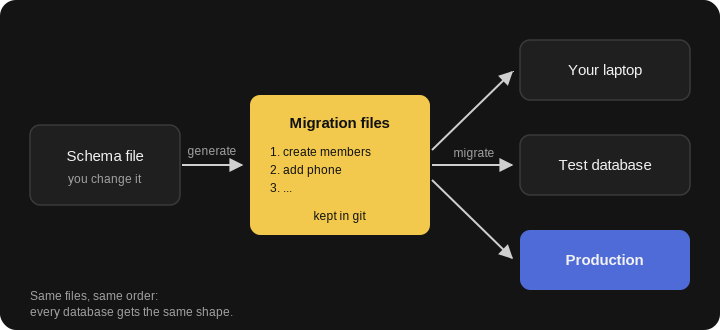
The generated file contains plain SQL, for example:
ALTER TABLE "members" ADD COLUMN "phone" text;In plain English: change the members table and add a text column called phone. Existing members get an empty value.
Read this file before you apply it. It is usually only a few lines. It tells you exactly what will happen to your data.
Migrations live in git
The migrations folder is part of your code. In Drizzle, it is drizzle/ by default. In Prisma, it is prisma/migrations/. With the Supabase command-line tool, it is supabase/migrations/. Commit the folder together with the code that needs it.
Now the history of your database’s shape is in git, next to the history of your code. A new laptop, a new teammate or a new test database runs all the migrations in order. Each one then gets exactly the same shape as production.
How it goes wrong
Mistake 1: The AI changes the live database directly
AI tools can connect to databases. They can run SQL in the SQL editor of Supabase (a popular database service) or click in a dashboard. They can also use commands like drizzle-kit push. This command changes the database to match your schema file without a migration file. Drizzle’s docs describe push as the best approach for rapid prototyping.
Prototyping means that you try ideas on your own test database. It does not mean changes to production.
A change made directly on the live database has these problems:
- It happens immediately, on real data, and nobody reads it first.
- It leaves no file, so no other database gets the change.
- Nobody can review, repeat or trace it later.
The remote database is the hosted one, not the copy on your laptop. Supabase’s own guide has a golden rule for it: “never change the remote database directly.”
Mistake 2: A rename that deletes data
A database cannot read your mind. Say a column called name disappears from your schema file and full_name appears. The tool must guess. Is this a rename? Or did you delete one column and add another one?
In Prisma, a field is a column in your schema file. Prisma’s docs say that, by default, a renamed field gives a migration that drops the old column, with all its data. Drizzle asks you in the terminal if it is a rename. If you pick the wrong answer, you get something like this:
ALTER TABLE "members" DROP COLUMN "name";
ALTER TABLE "members" ADD COLUMN "full_name" text;
DROP COLUMN deletes the column and every value in it. If you see DROP in a migration, stop and ask why. A rename that keeps the data looks like this:
ALTER TABLE "members" RENAME COLUMN "name" TO "full_name";Mistake 3: A required column on a full table
You add phone with .notNull(), so every member must have a phone number. The migration runs on production, and it fails. The 400 existing members have no phone number, so they would break the new rule. PostgreSQL (a popular database) refuses the whole change.
On your laptop it worked, because your test table was empty. So “it worked locally” means very little for migrations.
Mistake 4: The deploy gap
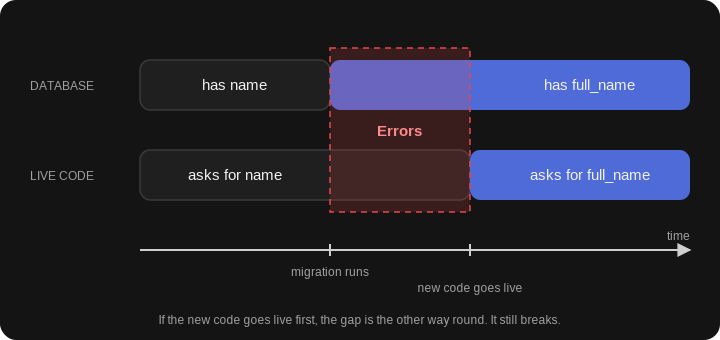
This mistake surprises people most. When you deploy, the database and the code do not change at the same moment.
- If the migration runs first, the old code still serves users for some time. It asks for
name, but that column now has a new name. The result is errors. - If the new code goes live first, it asks for
full_name. That column does not exist yet. The result is errors.
In both cases, there is a gap. During the gap, the live code and the live schema do not match. The gap can last seconds or minutes. With real users, someone always arrives during that gap.
What good looks like
The safe workflow
- Change the schema file, or ask the AI to change it.
- Generate the migration.
- Read the SQL. Look for
DROP,RENAMEandNOT NULL. - Apply the migration to your own test database and try the app.
- Commit the migration together with the code.
- Deploy. Your deploy runs the migrations on production once, automatically.
For step 6, the command is usually npx drizzle-kit migrate. In Prisma 7, it is prisma migrate deploy. Run it as a step in your deploy. Prisma’s docs say this: an automated deploy process must apply migrations to production. Do not run migrations by hand from your laptop.
Go deeper: Stop broken code before it ever goes live (Level 3) shows how to run migrations as part of an automatic deploy.
Adding is safe. Removing and renaming need steps.
A default value is the value that the database uses when you do not give one.
| Change | Safe in one step? | How |
|---|---|---|
| Add a table | Yes | Nothing uses it yet |
| Add an optional column | Yes | Old rows get an empty value |
| Add a required column | No | Add it with a default value. Or add it as optional, fill it in, then make it required |
| Rename a column | No | Expand and contract (below) |
| Remove a column | No | First deploy code that no longer uses it. Remove it in a later migration. |
Here is the pattern. Adding never breaks old code, because old code does not know that the new thing exists. Removing or renaming breaks any code that still uses the old thing.
Expand and contract
You can rename name to full_name with no broken moment. Split the rename into small steps. Each step is its own deploy:
- Expand. A migration adds
full_nameas an optional column. Deploy code that writes to both columns but still readsname. - Copy. A migration copies the old data to the new column:
UPDATE "members" SET "full_name" = "name" WHERE "full_name" IS NULL;In plain English: for every member who has no full_name yet, copy their name into it.
- Switch. Deploy code that reads and writes only
full_name. - Contract. Later, when nothing uses
name, a migration removes it.
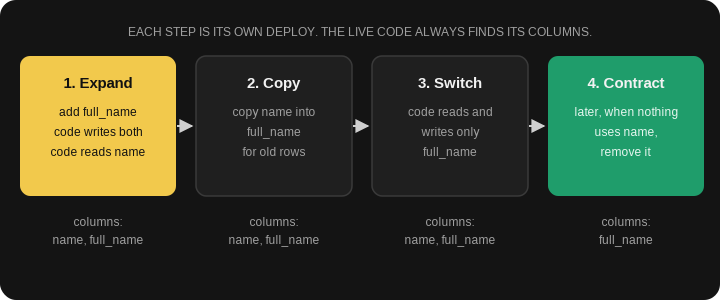
At every moment, the live code finds every column that it needs. This pattern is called expand and contract (also “parallel change”). Prisma’s docs recommend it to rename a field without downtime (time when the app does not work).
It is slower than one rename. For a project with no real users yet, a direct rename is fine. When people depend on your app, the extra steps are worth it.
Never edit a migration that already ran
Production already ran the old file and recorded it as done. If you edit the file, production will not run it again. Then your databases silently get different shapes. Prisma’s docs say that you should not edit or delete a migration that was already applied. Fix mistakes in the same way as git does: with a new migration on top.
Before anything destructive, back up
A migration with DROP can destroy data that git cannot bring back. A migration that changes existing values can too. Git saves your migration files. It does not save the rows.
Go deeper: The AI deleted your production database. Now what? (Level 2) covers backups. You need one before any risky change.
Test your own app
You need an app of your own for this part. No app yet? Start with Your first app in an afternoon, with an AI doing the typing. Built it in an AI app builder? Ask its AI to do each step below for you, or to add the missing part first (for example, a login).
- Find your migrations folder. Look for
drizzle/,prisma/migrations/orsupabase/migrations/. If there is no such folder, your schema exists only inside the database. Ask your AI to create a first migration from your current database. - Make sure it is in git. Open your repository (your project’s home) on GitHub. Make sure that the folder is there.
- Read your latest migration. Find any
DROP,RENAMEorNOT NULL. Can you explain each line? - Find out how production gets migrations. Is it a step in your deploy? Or does someone (or some AI) change the database by hand?
- Check who can change production. Which tools and AI assistants have the connection details of your production database? Each one can change your schema directly.
Takeaways
Key terms
- Schema: the shape of your database. It includes the tables, columns, types and rules.
- Schema change: any change to that shape.
- Migration: one schema change written down as a file. You keep it in git and apply it in order.
- Expand and contract: you add the new thing first, move over to it and remove the old thing last. The live app never breaks.
Red flags
- The AI ran
ALTER TABLE,DROPorpushagainst the production database. - A migration that was meant to be a rename has
DROP COLUMN. - A new
NOT NULLcolumn has no default, on a table that already has rows. - A migration renames or removes a column in the same deploy as the code change.
- Someone edited an old migration file after it ran.
- There is no migrations folder in git.
Ask your AI
- “Show me the SQL this migration will run, and explain what each line does to existing data.”
- “Will this migration break the code that’s currently live, during the deploy? If so, split it using expand and contract.”
- “How do migrations reach my production database? Is it automatic, and does it run only once per deploy?”
- “Never run schema changes directly on my production database. Write a migration file instead.”
Going deeper (optional, for readers who want more detail)
Prisma’s commands. These apply to Prisma ORM 7 and earlier:
prisma migrate devcreates and applies migrations on your development database.prisma migrate deployapplies waiting migrations in production.- Prisma’s docs say: never use
migrate devin production. prisma migrate dev --create-onlycreates the migration but does not apply it. You can edit the SQL first. For example, you can turn a drop-and-add into aRENAME COLUMN.
Prisma ORM 8 is a release candidate (a test version before the final release) at the time of writing. It uses different commands, such as prisma migration plan and prisma db migrate. Check the docs for the version that your project uses.
Prototyping commands. prisma db push and drizzle-kit push change the database to match your schema. They do not write migration files. Prisma’s docs say that db push is best for prototyping in development. It refuses changes that would lose data, unless you add --accept-data-loss.
Defaults are fast in modern PostgreSQL. Some defaults are fixed, like DEFAULT 'member'. In the past, a column with such a default rewrote the whole table. PostgreSQL’s docs say that it now stores a non-volatile default (the same value for every row) in the table’s metadata. This makes the change very fast, even on large tables. A default that changes for each row, like clock_timestamp(), still rewrites the table.
Locks. Most ALTER TABLE commands take a strong lock on the table while they run. Other queries can then wait. Fast changes hold the lock for a moment. Slow changes hold it longer. For example, adding NOT NULL to a huge table is slow, because the database must check every row. With small tables you will not see this, but it matters as your app grows.
Dropping does not make the table smaller at once. PostgreSQL’s docs say that DROP COLUMN hides the column but does not remove it from disk. The data is gone for your app, but the database gets the space back only over time.
Down migrations. Some tools let you write an “undo” migration for every change. An undo can create a dropped column again, but not the data that was in it. Backups are the only real undo for lost data.
Supabase. The Supabase command-line tool keeps migrations in supabase/migrations. Its guide recommends dashboard changes only on your local database. Then you save them as a migration with supabase db diff.
References (11)
- drizzle-kit generate, drizzle-kit migrate and drizzle-kit push: Drizzle documentation. Generating SQL migration files (with rename prompts, in the
drizzlefolder by default), applying them once each using the__drizzle_migrationstable, andpushas “the best approach for rapid prototyping”. - Customizing migrations: Prisma documentation. A renamed field becomes a drop-and-add by default, editing the SQL with
--create-only, and expand and contract to avoid downtime. - Development and production and About migration histories: Prisma documentation.
migrate devnever in production,migrate deployin an automated pipeline, committing the migrations folder, and not editing applied migrations. - Prototyping your schema and Prisma CLI reference (v8): Prisma documentation.
db pushfor prototyping and--accept-data-loss; the commands in the Prisma ORM 8 release candidate, such asmigration plananddb migrate. - Database Migrations: Supabase documentation. “The golden rule: never change the remote database directly”, the
supabase/migrationsfolder andsupabase db diff. - ALTER TABLE: PostgreSQL documentation. Fast non-volatile defaults, table rewrites for volatile ones,
DROP COLUMNhiding the column, strong locks, andSET NOT NULLscanning the table. - Parallel Change: Danilo Sato, martinfowler.com (2014). The expand, migrate and contract pattern.