Level 1 · Foundations
It works on my laptop. Why can't my friend open it?
It works on my laptop. Why can’t my friend open it?
Before you start This lesson uses words from earlier lessons.
- Server: a computer that waits for requests and answers them. (You pressed Enter. What happened in the next second?)
- Domain name: a human-friendly name for a server, like
example.com. (How does your browser find one computer out of billions?)- API: the menu of requests your server answers, like
/api/scores. (The hidden conversation behind every button you tap)- Process: a program that runs now. (Your app restarted and all the likes vanished)
“This site can’t be reached”
You built a quiz app with your AI. You can answer questions, see your score and try again. It works.
Your browser shows the app at this address:
http://localhost:3000You’re proud of it, so you paste the link in your group chat.
A minute later, your friend replies: “This site can’t be reached.”
But it works for you! You open it again. It still works.
If localhost:3000 means nothing to you yet, that’s normal. This lesson explains what it means and why only you can see your app. It also explains how apps get onto the internet for everyone.
In short: an app that works on your laptop isn’t on the internet yet. This lesson explains why, and what to do about it.
The terminal: talking to your computer in text
Before we look at the address, you need one tool. People often start apps from a terminal.
A terminal is a window where you type text commands, instead of clicking. A command is one instruction for the computer, like “show me the files in this folder”. You type it and press Enter. Then the computer answers in text.
Your AI tool uses a terminal too. When an AI coding tool says that it “runs a command”, it types into a terminal for you.
How to open one:
- Mac: open the Terminal app. It’s in Applications → Utilities. You can also search for “Terminal” with Spotlight, the Mac’s search tool (Cmd+Space).
- Windows: search for Terminal in the Start menu.
- VS Code (a popular code editor, an app for writing code): choose View → Terminal from the menu.
The line where you type usually ends in a symbol like $, % or >. It means “ready for a command”.
Here are two safe commands to try. They work on Mac. They also work in PowerShell, the program that Windows Terminal opens by default:
pwd
ls
In plain English:
pwdasks “which folder am I in?” The terminal is always “inside” one folder.lsasks “what’s in this folder?” It lists the files and folders there.
In short: a terminal is a window where you type commands. Your AI uses it too, often to start your app.
Starting your app on your laptop
Many apps made with JavaScript tools start with this command. You type it in the project’s folder:
npm run devIt means “start my app in development mode”, the mode that you use while you build. You’ll learn what npm is in It works on my machine, but not on yours. Blame the packages.
This command starts a process: a server that runs on your own laptop. A server that you run while you build and test is called a development server. The terminal then shows a message like this:
Local: http://localhost:3000That’s the address to open in your browser.
The development server is a process, so it runs only while that terminal is open. To stop it, click in the terminal and press Ctrl+C. On a Mac keyboard, the Ctrl key is called Control. If you close the terminal window, the server stops too.
When the server stops, reload the page. You get an error like “localhost refused to connect”. Nothing runs to answer the request.
In short: a command like
npm run devstarts a development server on your laptop. Ctrl+C stops it.
localhost means “this computer”
Now let’s read the address. First, localhost.
localhost is a special name. It always means “this same computer”. Computers, phones and tablets all understand it. On each device, it points to that device itself.
Think about the word “home”. If you tell a taxi driver “take me home”, you go to your home. If your friend says the same words, they go to their home. It’s the same word, but a different place. The place depends on who says it.
localhost works in the same way. On your laptop, it means your laptop. On your friend’s phone, it means your friend’s phone.
So when your friend opened localhost:3000, their phone looked for your quiz app on their own phone. Your app wasn’t there.
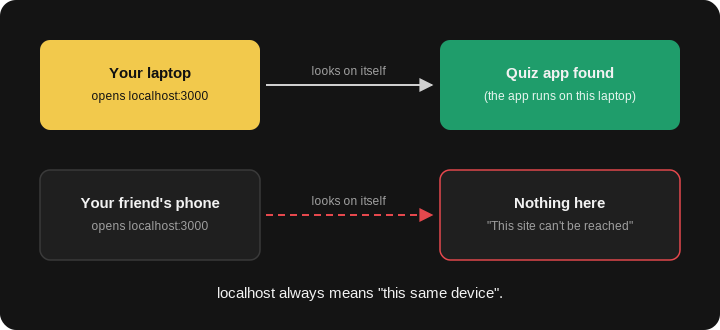
In short: localhost always means “this device”. The same link points to a different device for every person who opens it.
Ports: which program?
Now the :3000 part.
One computer can run many server programs at the same time. When a request arrives, the computer must know which program it’s for.
A port does this job. A port is a number that picks one program on a computer. Think of a big apartment building. The street address gets you to the building. The flat number gets you to the right door. The computer is the building, and the port is the flat number.
So localhost:3000 means: “this computer, the program that waits at port 3000.”
Here are some facts about ports:
- Port numbers go from 0 to 65535.
- Normal websites use port 443 (for
https://) or 80 (forhttp://). Browsers add these numbers for you, so you almost never see them. - Development servers pick other numbers, like 3000 (Next.js) or 5173 (Vite). Next.js and Vite are popular tools for building web apps.
- Only one program can use a port at a time.
That last rule explains a common error. If you start your app twice, the second one can fail with a message like this:
Error: listen EADDRINUSE: address already in use :::3000It means “port 3000 is already taken”. Usually, an older copy of your app still runs in another terminal. Stop it with Ctrl+C. Then try again.
In short: a port is a number that picks which program gets a request. Only one program can use each port.
Why nobody else can reach your laptop
Now say that your friend used your laptop’s real internet address instead of localhost. It still wouldn’t work, for three reasons.
- Your router blocks it. Your laptop connects to the internet through your home’s router (the Wi-Fi box). By default, routers don’t let strangers from the internet start a connection to the devices inside. That protects you.
- Your laptop isn’t always on. When you close the lid, it sleeps. When you close the terminal, the app stops. Visitors would find nothing.
- Your laptop moves. At school or in a café, it’s on a different network with a different address.
Your laptop is a great place to build, but a bad place to serve visitors.
In short: your router keeps outsiders out, and your laptop sleeps and moves. So your app needs a different home.
Hosting: a computer that’s always awake
Your app needs a server with these three things:
- It is always on.
- It is always connected to the internet.
- It is set up to accept visitors.
Some companies run huge numbers of computers like this in buildings called data centers. They let you put your app on these computers, often free for small apps. This service is called hosting. A company that offers it is a hosting provider or hosting platform.
Vercel and Netlify are two popular hosting platforms for web apps.
Go deeper: There is no cloud. It’s someone else’s computer (Level 1) explains where these computers come from.
In short: with hosting, your app runs on someone else’s always-on server, so everyone can reach it.
Deploying to production
To copy your app onto a hosting server and start it there is called deploying. People also say “shipping” or “going live”.
After you deploy, the hosting platform gives your app a real web address, with a domain name. On Vercel, for example, it looks like your-quiz.vercel.app. Your friend can open that link from anywhere.
The live version that real users visit is called production. Your laptop is where you build and test. Production is where real people use your app.
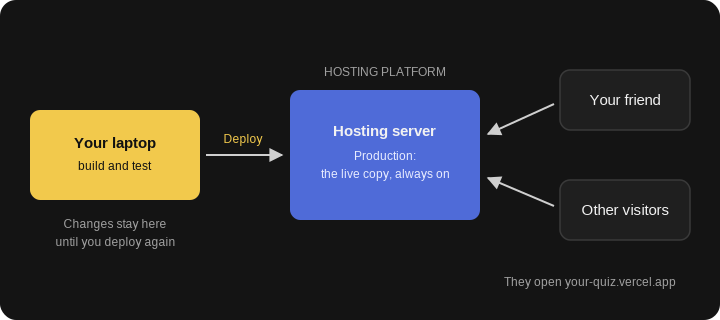
This matters, because the two are separate copies. If you change code on your laptop, production doesn’t change until you deploy again.
What about a domain name of your own? The free address from your hosting platform is good for a start. Later, you can buy a domain name of your own, ending in something like .com, from a company that sells them. Then you connect it to your app with DNS. DNS is the internet’s address book from How does your browser find one computer out of billions?.
Go deeper: From your laptop to a real website in one push (Level 1) shows you a real deploy, step by step.
In short: deploying copies your app to a hosting server. The live copy is production. It changes only when you deploy again.
How it goes wrong
Your laptop and production are different computers. Something that works on one can break on the other.
Mistake 1: localhost written into the code
AI tools sometimes write the full laptop address into your app’s code. This is common in code that runs in the browser (the frontend):
// Works only on your laptop
await fetch("http://localhost:3000/api/scores");

// Works everywhere
await fetch("/api/scores");
In plain English:
fetchasks a server for data. Here, it asks for the list of scores.- The first version asks
localhost:3000. Frontend code runs on each visitor’s device. So for your friend,localhostmeans their phone again. The scores never load. - The second version gives only the path,
/api/scores. Then the browser asks the same server that the page came from. On your laptop, that’s your laptop. In production, that’s the production server.
Mistake 2: Settings that exist only on your laptop
Your app can need settings, like a secret key for a service. If the settings are only on your laptop, production doesn’t have them, and the app breaks.
Go deeper: Your app’s secrets don’t belong in your code. Here’s where they go (Level 1) explains how to give production its own settings.
Mistake 3: You forgot to deploy
You fix a bug on your laptop. You tell your friend to try again. It’s still broken. Production still has the old copy, because you never deployed the fix.
Go deeper: Why you should never test on your real users (Level 3) shows how teams test changes safely before the changes reach production.
In short: look for
localhostin your code, settings that production doesn’t have, and changes that you haven’t deployed yet.
What good looks like
- Use relative paths like
/api/scoresin frontend code, nothttp://localhost:3000/.... A relative path has no server name in it. - Deploy early. Put a tiny version of your app online on day one. Small problems are easier to fix than big ones.
- Test the real link. After each deploy, open the production address yourself.
- Test from another device. Turn off Wi-Fi on your phone. Then open the link. If it works on mobile data, it really is on the internet.
In short: keep localhost out of your code, deploy early, and test the live link from another device.
Try it yourself
Experiment 1: Your first commands
- Open a terminal (see the steps above).
- Type
pwdand press Enter. Read the folder name. - Type
lsand press Enter. - Compare the list with the same folder in your file explorer (Finder on Mac). It’s the same folder, shown in text.
Experiment 2: Start and stop an app
Do this if you have an app project from your AI tool.
- In the terminal, go to your project’s folder. Ask your AI for the exact command. You can also type
cd, a space and the folder’s path.cdmeans “change folder”. - Start the app (often with
npm run dev). - Find the
localhostaddress in the terminal’s text, and open it. - Open the same address on your phone. It fails, because
localhostthere means your phone. - In the terminal, press Ctrl+C.
- Reload the page on your laptop. It fails too, because the process stopped.
Takeaways
Key terms
- Terminal: a window where you type text commands.
- Development server: a server that runs on your laptop while you build and test.
- localhost: a name that always means “this same device”.
- Port: a number that picks which program on a computer gets a request.
- Hosting: your app runs on someone else’s always-on server.
- Deploying: you copy your app to a hosting server and start it there.
- Production: the live version of your app that real users visit.
Which step broke?
- Your friend can’t open your
localhostlink → it points to their own device. Deploy your app. localhostworks, then suddenly refuses to connect → your app’s process stopped. Start it again.- “Address already in use” → another program uses that port. Stop the old one.
- It works on your laptop, but production is broken → look for
localhostin the code, missing settings, or a fix that you haven’t deployed.
Ask your AI
- “Search my code for ‘localhost’. Which of these will break when the app is deployed?”
- “What command starts my app, and what port does it use?”
- “Explain, step by step, how to deploy this app for the first time.”
Going deeper (optional, for readers who want more detail)
localhost is an IP address too. An internet standard (RFC 6761) reserves the name localhost. It points to a special address called the loopback address. In IPv4 and IPv6, the two kinds of IP address, it is 127.0.0.1 and ::1. Requests to it never leave your computer.
Testing on your phone over Wi-Fi. A development server can listen only on localhost, or on all of the computer’s network addresses. By default, Vite’s development server listens only on localhost. You can change this with its --host option. By default, Next.js’s development server listens on all addresses. Then a phone on the same Wi-Fi can open the app with your laptop’s local network address. An example is http://192.168.1.20:3000 (your number will be different). This still doesn’t make the app reachable from the rest of the internet.
Port ranges. IANA, the organization that keeps a record of internet numbers, splits ports into three ranges. These are system ports (0–1023), user ports (1024–49151) and dynamic or private ports (49152–65535). Linux is an operating system that many servers use. On Linux, a program normally needs special permission to use a port below 1024. So development servers use higher numbers.
Why your router blocks visitors. Most home routers use NAT (Network Address Translation). All your home devices share one public internet address. When your laptop starts a connection, the router remembers it and passes the reply back. When a stranger starts a connection, the router doesn’t know which device it’s for, so it ignores it. Port forwarding is a router setting that makes an exception. You can run a public app from home in this way. But it’s risky and unreliable, so people use hosting.
Tunnels. Some tools make a temporary public link to a server on your laptop, through a service on the internet. They’re useful for quick demos. They’re also useful to test webhooks, the messages that other services send to your app. But when your laptop is offline, your app is offline too.
Changing the port. Next.js accepts -p: next dev -p 4000 starts on port 4000. If its port is busy, Vite tries the next free port automatically.
References (10)
- RFC 6761: Special-Use Domain Names: IETF. The name
localhostis reserved and always points to the loopback address. - Port: MDN Web Docs. What a port is, and the default ports 80 for HTTP and 443 for HTTPS.
- Service Name and Transport Protocol Port Number Registry: IANA. The three port ranges: 0–1023, 1024–49151 and 49152–65535.
- next CLI: Next.js.
next devuses port 3000 and hostname0.0.0.0by default, and-pchanges the port. - Server Options: Vite. Vite’s development server uses port 5173 and listens on
localhostby default, and tries the next free port if 5173 is taken. - Errors: Node.js Documentation.
EADDRINUSEmeans a program tried to use an address and port that is already in use. - Accessing Deployments through Generated URLs: Vercel Docs. Vercel automatically gives each deployment a
vercel.appaddress. - Open or quit Terminal on Mac: Apple Support. Terminal is in the /Applications/Utilities folder.
- capabilities(7): Linux manual pages. Using a port below 1024 needs a special permission called
CAP_NET_BIND_SERVICE. - Get started with domains: Netlify Docs. Each site has a default
netlify.appaddress.