Level 1 · Foundations
The AI broke your working app. Here's your undo button
The AI broke your working app. Here’s your undo button
Before you start
- Terminal: a window where you type commands for your computer. (It works on my laptop. Why can’t my friend open it?)
- .env file: a file that holds your app’s secret settings, like passwords and keys. (Your app’s secrets don’t belong in your code. Here’s where they go)
- node_modules: the folder where npm puts downloaded packages. You can always rebuild it. (It works on my machine, but not on yours. Blame the packages)
It worked ten minutes ago
Your quiz game works. Players can sign in and play.
You ask your AI: “Add a high-score board.” It changes nine files. The high-score board appears. But now the sign-in page is blank.
You ask the AI to fix it. It changes more files. Now the game doesn’t start at all.
You want the version from ten minutes ago back. In a video game, you would load your last save.
Code can have save points too. This lesson shows you how, with a tool called Git. Git takes a few minutes to set up, and it can save you hours.
Save points for your code
Git is a program that saves snapshots of your project folder when you tell it to.
Each snapshot is called a commit. A commit remembers every file in your project exactly as it was at that moment. Later, you can look at any commit. You can compare it with your project now, or go back to it.
So a commit is like a save point in a game. You save before the boss fight. If the fight goes badly, you load the save and try again.
Where the game comparison stops working:
- Many games save automatically. Git only saves when you tell it to. If you never commit, you have nothing to go back to.
- Git saves your files. It doesn’t save the data inside your database, like your players’ scores.
Go deeper: The AI deleted your production database. Now what? (Level 2) covers saving your data too.
In short: Git takes snapshots of your project. Each snapshot is a commit, like a save point you can go back to.
Setting up Git (once per project)
First, install Git from git-scm.com. Then type git --version in your terminal to check it. It should print a version number.
Next, run these commands. You need the first two only once on each computer:
git config --global user.name "Sam Lee"
git config --global user.email "sam@example.com"
cd quiz-game
git init
In plain English:
- Lines 1–2: tell Git your name and email. Git writes them into every commit, so it knows who made each save point. Use your own name and email.
- Line 3: go into your project folder.
- Line 4: start using Git in this folder.
A folder that Git watches is called a repository, or repo for short. Git keeps all your save points in a hidden folder called .git inside it. Never delete that folder. It is your history.
Tell Git what not to save
Before your first commit, create a file called .gitignore in your project folder. It’s a list of things Git must never save. Put these two lines in it:
node_modules
.env
node_modules is very large, and you can always rebuild it. .env holds your secrets, and secrets must never go into your save points.
In short: install Git, tell it your name, and run
git initin your project. Add a.gitignorefile so Git skipsnode_modulesand.env.
Making a save point
You need three commands to make a commit:
git status
git add .
git commit -m "Sign-in page works"
In plain English:
git statusshows which files changed since your last commit. It never changes anything. Run it as often as you like.git add .chooses what goes into the next save point. The dot means “everything in this folder”, except what’s in.gitignore.git commit -m "..."takes the snapshot. The text in quotes is the commit message: a short note that says what is in this save point.
Write messages that say what works, like “Sign-in page works”. Later, you will read them when you look for a working version.
When should you commit? Commit every time something works. Always commit before you ask the AI for a big change. Many small commits give you more places to go back to.
In short:
git add .thengit commit -m "message"makes a save point. Commit when something works, and before every big AI change.
Looking at your save points
To see all your commits, run:
git log --onelineYou’ll see something like this:
c4e81a2 Add high-score board
9f3b7d0 Sign-in page works
1a2b3c4 First version of the quiz game
Each line is one commit, with the newest at the top. The code on the left is the commit’s hash: a unique ID that Git gives every commit. Git shows a short version of it. You use it to tell Git which save point you mean. (If the list is long, press q to leave it.)
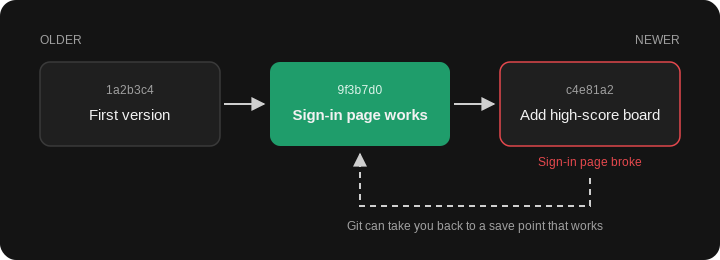
To see exactly what changed since your last commit, run git diff. Lines that start with - were removed. Lines that start with + were added.
In short:
git log --onelinelists your commits, newest first. Each one has a hash, a short ID you use to point at it.
How it goes wrong
No save point
The most common problem is that you have no commit to go back to. If your last commit was a week ago, Git can only take you back a week.
Commands that throw work away
When something breaks, your AI may suggest Git commands to “clean up”. Some are completely safe. Others delete your uncommitted work (changes you made after your last commit). Git can’t bring that work back.
| Command | What it does | Can you get the work back? |
|---|---|---|
git status, git log, git diff |
Only show information | Nothing changes |
git stash -u |
Puts uncommitted changes aside in a drawer | Yes, with git stash pop |
git revert <hash> |
Adds a new commit that undoes an old one | Yes, nothing is deleted |
git restore . |
Throws away changes you haven’t added with git add |
No |
git reset --hard |
Throws away all uncommitted changes to files Git saves | No |
git clean -fd |
Deletes new files you never added with git add |
No |
The rule: before you run a command in the last three rows, run git status. Commit or stash anything you might want. If you’re not sure, ask your AI: “Will this command delete anything I can’t get back?”
Saving secrets
If you commit .env, your secrets are inside your history. If you delete the file later, it stays in the old commits. That’s why you add .gitignore before your first commit.
Go deeper: Your API key leaked, and strangers are spending your money (Level 2) shows how this goes wrong and how to fix it.
In short: have a recent commit, know which commands delete work, and keep secrets out of your history.
What good looks like: going back safely
Here’s what to do in each situation. Start with git status to see where you are.

Situation 1: it broke, and you haven’t committed yet
git stash -uThis command puts every change since your last commit into a drawer. The -u includes new files too. Your folder goes back to how it was at your last commit. (Git leaves files in .gitignore, like .env, alone.) Test your app.
- If you want the changes back, run
git stash pop. - If you are sure you don’t want them, run
git stash drop. This deletes them for good.
Situation 2: the broken change is already committed
git log --oneline
git revert --no-edit c4e81a2
Find the hash of the bad commit in the log. Then git revert makes a new commit that does the opposite of the bad one. The bad commit stays in your history, so you can still look at it later. Nothing is lost.
--no-edit tells Git to write the commit message for you. Without it, Git opens a text editor (a program for writing text) so you can type one. Git can refuse to revert while you have uncommitted changes, so commit or stash first. If several commits went bad, revert each one, starting with the newest.
Situation 3: go back and throw everything after it away
git reset --hard 9f3b7d0This command moves your project back to that commit. The commits after it disappear from git log. Also, Git deletes any uncommitted changes to the files it saves, forever. Use it only when you’re sure. If you are not sure, use situation 1 or 2 instead.
In short: not committed yet →
git stash -u. Already committed →git revert.git reset --hardworks too, but it deletes things, so use it last.
Branches: safe experiments
So far, all your commits are in one line. A branch is a separate line of commits.
Think of copying your game’s save file before you try something risky. If it goes badly on the copy, the original stays the same.
Your main line is usually called main (on some computers, it’s called master). git status tells you which branch you’re on. Here’s how to experiment safely:
git switch -c try-high-scores
# let the AI work, test it, commit
git switch main
git merge try-high-scores
In plain English:
- Line 1: create a branch called
try-high-scoresand move onto it. - Line 2: a note for you (Git ignores lines that start with
#). Work and commit as usual. Yourmainbranch doesn’t change. - Lines 3–4: it worked! Go back to
main, and merge the experiment: bring its commits intomain.
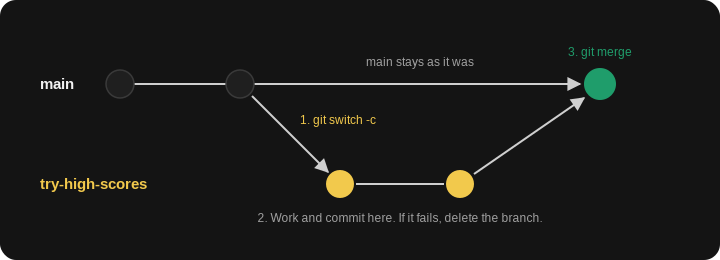
If the experiment failed, throw the branch away instead:
git switch main
git branch -D try-high-scores
This deletes the branch and its commits. main is exactly as you left it.
One tip: commit or stash before you switch branches. If you don’t, Git refuses to switch, or it brings your uncommitted changes with you.
In short: a branch is a safe copy for experiments. Merge it if it works. Delete it if it doesn’t.
GitHub: a copy that survives your laptop
Everything so far is in the .git folder on your laptop. If your laptop breaks, your save points are gone too.
GitHub is a website that keeps copies of Git repositories online. Git and GitHub are different things. Git is the program on your computer. GitHub is a website that stores a copy of your repo.
- Make a free account at
github.com. - Create a new repository. Choose Private, so only you can see it.
- Do not tick the options that add starting files. GitHub’s guide says this avoids errors.
- GitHub then shows you commands to copy. They look like this:
git remote add origin https://github.com/your-name/quiz-game.git
git push -u origin main- Line 1: tells your repo where its online copy is.
originis the usual nickname for it. - Line 2: push your commits, which means upload them to GitHub. If your branch name isn’t
main, use your branch name.
The first time, you must sign in to GitHub. After that, run git push when you want a backup of your new commits.
Go deeper: From your laptop to a real website in one push (Level 1) shows how GitHub helps you put your app on the internet.
In short: GitHub keeps an online copy of your repo.
git pushuploads your commits there.
Try it yourself
Practice in a test folder first, not your real app.
- Make a new folder. Open a terminal inside it, and run
git init. - Create a file called
game.txtthat containsLevel 1: works. - Run
git add .and thengit commit -m "Level 1 works". - Change the file to
Level 1: BROKEN. Rungit statusandgit diff. - Run
git stash -u. Open the file: it says “works” again. Rungit stash pop: it’s broken again. - Commit the broken version. Run
git log --onelineand copy its hash. Rungit revert --no-edit <hash>. Open the file. Rungit log --onelineagain and count the commits. - Run
git switch -c experiment, change the file, and commit. Rungit switch mainand open the file. Then rungit branch -D experiment.
Takeaways
Key terms
- Git: a program that saves snapshots of your project
- Repository (repo): a folder that Git watches
- Commit: one snapshot, a save point you can return to
- Hash: the unique ID of a commit
- Branch: a separate line of commits for experiments
- Merge: to bring a branch’s commits into another branch
- GitHub: a website that stores copies of your repos online
- Push: to upload your commits to GitHub
Safe or dangerous?
- Safe, only shows information:
git status,git log,git diff - Safe, can be undone:
git commit,git stash -u,git revert,git switch - Can delete work you may not get back:
git restore .,git reset --hard,git clean -fd,git stash drop,git branch -D
Ask your AI
- “Before you change anything, remind me to commit.”
- “Before you suggest any git command, tell me if it can delete work I can’t get back.”
- “My app broke after your last change. Help me find the last working commit with git log and undo the change with git revert.”
Going deeper (optional, for readers who want more detail)
The staging area. git add puts changes into a waiting area called the staging area (or index). git commit saves what’s in it. git diff shows changes you haven’t added yet. git diff --staged shows changes you have added.
Why git restore . might not undo everything. By default, git restore copies files back from the staging area, not from your last commit. If you already ran git add, those changes stay. HEAD is Git’s name for the commit you’re on now. So git restore --source=HEAD --staged --worktree . resets both to your last commit. It also deletes uncommitted work.
Reverting several commits at once. git revert --no-edit 9f3b7d0..HEAD reverts every commit after 9f3b7d0, newest first. It makes one new commit for each.
Looking at an old commit without changing anything. git switch --detach 9f3b7d0 lets you look at the project as it was then. Git calls this “detached HEAD”. Run git switch main to come back.
The reflog: a second chance for commits. Git keeps a private log of where your branches have pointed, called the reflog. You can usually find commits that “disappeared” after git reset --hard or git branch -D with git reflog. By default, Git keeps entries for 90 days, or 30 days for commits that no branch points to. The reflog is only on your computer, and it never contains uncommitted changes. Stashes you drop are much harder to recover.
Don’t rewrite pushed history. git reset --hard moves your branch backwards. If you already pushed those commits and someone else has them, use git revert instead. The Git docs warn against resetting commits you’ve already given to somebody else.
main or master? git init has named the first branch master, unless you change a setting called init.defaultBranch. GitHub uses main for new repositories. The Git project has announced that Git 3.0 will change its default to main. You can rename your branch with git branch -m main.
Merge conflicts. Sometimes two branches changed the same lines. Then git merge stops and marks the lines that clash in your files. You choose what to keep, then commit. Ask your AI to help you through it step by step.
AI tools with their own undo. Some AI coding tools keep their own checkpoints of recent changes. They’re useful, but they only cover that tool. Git works no matter what changed your files.
References (8)
- git-stash: Git docs. What
git stash -u,popanddropdo, and that dropped stashes are hard to recover. - git-revert: Git docs.
git revertadds a new commit that undoes an old one, asks for a clean working tree, and--no-editskips the editor. - git-restore: Git docs.
git restorecopies files from the staging area by default, and--source=HEAD --staged --worktreeresets both. - git-reset: Git docs.
git reset --hardoverwrites your files, and the warning not to reset commits you’ve already given to somebody else. - git-reflog: Git docs. What the reflog records, and the default 90-day and 30-day expiry times.
- BreakingChanges: Git docs. Git 3.0 will name the first branch of new repositories
main, and has no release date yet. - Adding locally hosted code to GitHub: GitHub Docs. Don’t add starting files to the new repository, to avoid errors, and the
git remote addandgit pushcommands. - The default branch for newly-created repositories is now main: GitHub Changelog. GitHub names the first branch of new repositories
main.