Level 2 · Builder
The profile picture that ran code on your site
- File uploads
- File size limits
- File type checks
- Magic bytes
- Object storage
- Separate domain for user content
- Signed URLs
The profile picture that ran code on your site
Before you start This lesson uses words from earlier lessons:
- XSS: cross-site scripting. An attacker’s code runs in other people’s browsers as if it were part of your site. (A comment that runs code in every visitor’s browser)
- Serverless functions: backend code that a hosting platform runs only when a request arrives. Often many copies run at once. (From your laptop to a real website in one push)
- S3: the Amazon service for storing files in the cloud. (There is no cloud. It’s someone else’s computer)
- Never trust the browser: the user can change anything the browser sends, so the server must check it. (Can strangers read your whole database? Check in 5 minutes)
The profile picture feature
You ask your AI to add profile pictures to your app. It takes five minutes. Users pick an image, the image uploads, and it appears next to their name. In the first week, three things happen.
On Monday, someone uploads a 3 GB video as their profile picture. Your server’s disk fills up. The whole app stops until you delete the video.
On Wednesday, you deploy an update (you put a new version of your app online). Every profile picture disappears.
On Friday, a user reports a strange link: yourapp.com/uploads/logo.svg. They opened it, and a message appeared: “Your session has been stolen”. It was a joke this time. It could have been real.
All three problems come from one fact: an uploaded file is user input. It is the biggest and least predictable type of user input that your app gets.
The mental model: a parcel from a stranger
Most user input is a few words: a name, an email address, a comment. An upload is a whole file. The person who sends it chooses every part of it:
| Part of the upload | What the user can send |
|---|---|
| The name | cute-cat.png, or ../../server.js |
| The type that the browser reports | “this is an image”, which the user can change |
| The size | a few kilobytes, or many gigabytes |
| The contents | a photo, or a web page with a script inside |
Think of a company mailroom that accepts parcels from strangers. A careful mailroom does five things:
- It weighs the parcel and refuses anything too heavy.
- It looks inside and does not trust the label.
- It puts its own label on the parcel and does not use the sender’s label.
- It stores the parcel in a separate warehouse, not in the office where people work.
- It hands out the parcel only with a pickup slip that expires.
These ideas are the base of the rules for safe uploads. The rest of this lesson goes through the rules one by one.
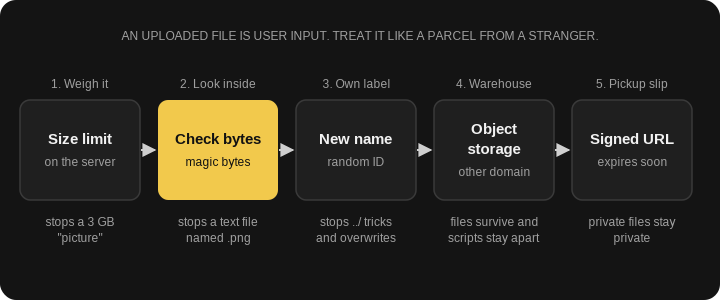
Where the comparison stops working: a parcel is one thing. A digital file can be two things at the same time. A file can be a valid image and contain hidden text that a browser treats as code. So you must look inside, but sometimes that is not enough.
How it goes wrong
Here is upload code like the AI often writes. It uses Express, the popular JavaScript tool for servers that the code in these lessons uses. It also uses multer, a popular package (ready-made code that you install) that receives uploaded files in Express.
const storage = multer.diskStorage({
  destination: "public/uploads",
  filename: (req, file, cb) => cb(null, file.originalname),
});
app.post("/api/avatar", requireLogin, multer({ storage }).single("avatar"), (req, res) => {
  if (!req.file.mimetype.startsWith("image/")) return res.status(400).json({ error: "Images only" });
  res.json({ url: `/uploads/${req.file.originalname}` });
});
In plain English:
- Lines 1–4: Save uploaded files to the
public/uploadsfolder on the server’s disk. Use the name that the user’s file had. - Line 5: When a logged-in user uploads a file called
avatar, run multer first. Multer receives and saves the file. - Line 6: If the file’s type does not start with
image/, reply with an error. - Line 7: If not, send back the address of the saved file.
It works when you test it with a photo. Here is what is wrong:
- No size limit. In multer, the file size limit is “no limit” unless you set one. That is your Monday.
- The type check trusts the browser.
mimetypecomes from the Content-Type header that the browser sent. (A header is an extra line of information that travels with the request.) It is a label, not a look inside. OWASP is a non-profit group whose web security guides are used across the industry. Its File Upload Cheat Sheet says that this value “cannot be trusted, as it is trivial to spoof”. - The check is too late. Multer saves the file before line 6 runs. Rejected files also stay on the disk.
- The user chooses the file name. Two users who upload
avatar.pngoverwrite each other. Some code uses the name without cleaning it. There, a name with../in it can try to point to a different folder. This trick is called path traversal. (By default, multer removes folder parts from the name. Not every tool does this, so do not depend on it.) - Files are on the server’s disk. On a serverless platform, that disk is temporary. That is your Wednesday.
- Your main domain serves the files. That is your Friday.
What good looks like
Rule 1: Limit the size, on the server
Set a maximum size that fits the feature. A profile picture can need 5 MB. A PDF invoice can need 10 MB. Also limit how many files one request can contain.
const upload = multer({
  storage: multer.memoryStorage(),
  limits: { fileSize: 5 * 1024 * 1024, files: 1 }, // 5 MB, one file
});
In plain English:
- Keep the uploaded file in memory (the server’s short-term working space), not on disk, while you check it.
- Stop reading any file bigger than 5 MB.
- Accept only one file in each request.
The multer docs warn that large files in memory can use up all of your server’s memory. This is one more reason why the size limit is important.
When a file is too big, multer gives an error with the code LIMIT_FILE_SIZE. Ask your AI to turn it into a clear message and the status code 413 Content Too Large.
A size check in the browser is also good. Users get a quick message and do not wait for a big upload to fail. But the browser check is only for convenience. The server check is the real one.
Your hosting platform can also have its own limit. For example, Vercel limits the request body sent to a function to 4.5 MB by default (at the time of writing). Bigger uploads must go directly to storage. Rule 6 shows how.
Rule 2: Check the type by looking inside
Most file formats start with a few fixed bytes that identify them. These bytes are the file signature, or magic bytes. Every PNG file starts with the same 8 bytes: 89 50 4E 47 0D 0A 1A 0A. (Programmers write bytes in hexadecimal, a number system that uses 0–9 and A–F.) JPEG, WebP and most other formats have their own signatures. A text file renamed to .png does not start with any of them.
The file-type package reads these bytes for you:
import { fileTypeFromBuffer } from "file-type";

const ALLOWED = ["image/png", "image/jpeg", "image/webp"];

const type = await fileTypeFromBuffer(req.file.buffer); // reads the first bytes
if (!type || !ALLOWED.includes(type.mime)) {
  return res.status(400).json({ error: "Please upload a PNG, JPEG or WebP image." });
}
In plain English:
- Line 3: Make a short list of the types that you accept. This is an allowlist: the app refuses everything that is not on the list.
- Line 5: Look at the first bytes of the uploaded file and find its real type. If no known signature matches,
typeis empty. - Lines 6–8: If the type is unknown or not on the list, refuse the file.
Know these three things:
- Use an allowlist, not a blocklist. “Refuse
.exeand.html” always misses something. “Accept only PNG, JPEG and WebP” does not. - Magic bytes are a strong signal, not proof. OWASP warns that you must not use a signature check alone. For images, the safest step is to re-encode them. Open the image with an image library (ready-made code for images) and save a new copy. This also removes hidden metadata, for example the GPS location where a phone took the photo.
- Be careful with SVG and HTML. SVG images are text, and they can contain JavaScript.
file-typedoes not detect SVG at all. If you do not need SVG uploads, do not accept them.
Rule 3: Give every file your own name
Never store the file with the user’s file name. Make a random name on the server. OWASP’s cheat sheet calls a random name “essential”. A UUID (a long random ID) is one example.
const key = `avatars/${crypto.randomUUID()}.${type.ext}`;This line makes a name like avatars/3f8a1c9e-72b4-4d1a-9c3e-5b6f8a2d1e7c.png. It uses the extension (the end of the name, like .png) that you detected in Rule 2. It does not use the extension that the user sent.
You can show the original name (“tax-return-2024.pdf”) if you want. Save it in your database as plain text. Treat it like any other user input when you show it.
Rule 4: Store files in object storage, not on your server
Object storage is a cloud service for storing files. S3 is the best-known one. Others include Cloudflare R2 and Supabase Storage. Object storage keeps files in a container called a bucket.
Why not use the server’s own disk?
- Serverless disks do not keep files. For example, on Vercel a function’s disk is read-only, except for a small temporary
/tmpfolder. - A deploy replaces the server. Files saved next to your code can disappear with the next deploy.
- There can be more than one server. If your app runs on two servers, a file saved on one server is not on the other.
- A full disk stops everything. If uploads fill the disk, your app stops. Its logs (the records it writes) and maybe your database stop too.
Object storage keeps files safe when servers start and stop. It also grows as you need more space.
Rule 5: Serve uploads from a different domain
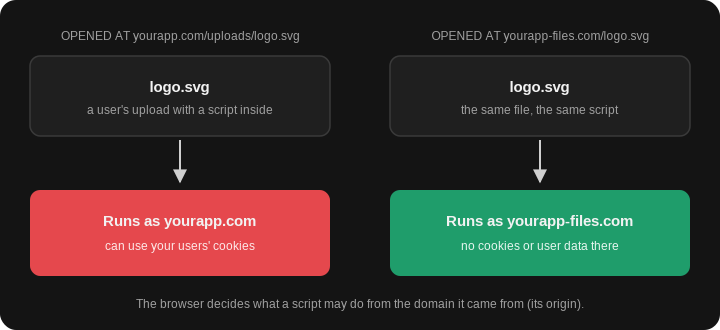
This rule fixes Friday’s link. A browser decides what code can do from the origin of the code: the domain in the address bar. Say a user’s SVG or HTML file opens at yourapp.com/uploads/.... Then any script in it runs as yourapp.com.
That script can read pages. It can send requests with the user’s cookies (small pieces of data that keep the user logged in). It can do anything your own code can do. That is XSS through an upload.
If a different domain serves the same file, its script runs as that other domain. That domain has none of your users’ cookies or data. Big companies do this. For example, Google has served risky user content from separate domains such as googleusercontent.com.
For your app:
- Serve files from the domain of your storage provider, or from a separate domain that you own, like
yourapp-files.com. A subdomain (a name under your main domain) likefiles.yourapp.comis better than nothing. A fully separate domain is safer. - Some files are for people to download, not to view. For those files, make storage send the header
Content-Disposition: attachment. This header tells the browser “save this file”. The browser does not open it.
Go deeper: A comment that runs code in every visitor’s browser (Level 2) explains why code that runs “as your site” is so dangerous.
Rule 6: Private files need signed URLs
Profile pictures can be public. Tax documents, contracts and medical scans cannot. Keep those in a private bucket. Nobody can download anything from it without permission.
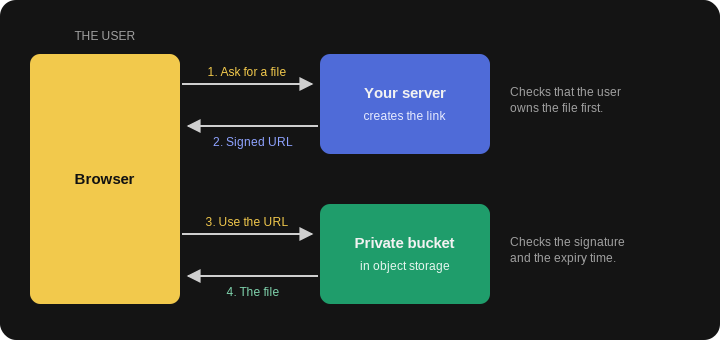
To let one user download one file, your server creates a signed URL. It is a link to a single file, with a signature and an expiry time inside it. The storage service checks the signature, so the link works without a password.
Follow two rules for signed URLs:
- Check authorization first. Before your server creates the link, check that the logged-in user is allowed to see that file. If you do not, you have an IDOR bug (a user gets another user’s data by changing an ID) with extra steps.
- Keep the expiry short. AWS (Amazon’s cloud) says that these links work for anyone who has them. People forward links, save them in browser history and post them in chats. The link works until it expires. A few minutes is usually enough.
Signed URLs work for uploads too. Your server checks the user and then creates a signed upload URL. The browser sends the file directly to storage. This avoids the request size limit of your platform.
But a direct upload also skips the checks in Rules 1–3. So ask your AI how to check size and type for direct uploads. For example, your server can check the file after it arrives in storage.
Go deeper: Change one number in the URL, see everyone’s invoices (Level 2) explains the ownership checks that every file download needs.
Test your own app
You need an app of your own for this part. No app yet? Start with Your first app in an afternoon, with an AI doing the typing. Built it in an AI app builder? Ask its AI to do each step below for you, or to add the missing part first (for example, a login).
Use a test account on your own app.
- Size: Upload a file bigger than your limit, for example a large video. You must get a clear error message. A crash, a long wait or a success means a problem.
- Disguised file: Make a text file with a few words in it. Rename it to
test.pngand upload it. Your app must refuse it. - SVG: If your app accepts SVG, save this text as
test.svgand upload it:<svg xmlns="http://www.w3.org/2000/svg"><script>alert(document.domain)</script></svg>. Then open the link to the uploaded file directly in a new tab. If a box appears and shows your main domain, you have Friday’s bug. - Where files are: Right-click an uploaded image and choose “Open image in new tab”. Look at the domain in the address bar. Is it your main domain? Does the file still exist after your next deploy?
- Private files: Copy a signed link to a private file. Open it in a private window. Wait until it must be expired, and try again. It must stop working. Then log in as a second user. Try to get a link to the file of the first user.
Takeaways
Key terms
- Magic bytes (file signature): the first bytes of a file. They show its real type.
- Allowlist: a list of what you accept. You refuse everything else.
- Path traversal:
../in a file name, used to reach another folder. - Object storage and bucket: a cloud service for files (S3, R2, Supabase Storage), and the container that holds the files.
- Signed URL: a temporary link to one file. It works for anyone who has it, until it expires.
Red flags in AI-written code
- There is no
fileSizelimit, or only the browser checks the size. - The code checks the file type only from the extension or
file.mimetype. - The code saves files with
file.originalname. - Uploads go to a folder like
public/uploadson the server. - Your main domain serves the uploaded files.
- Private documents are in a public bucket, or signed URLs last for days.
Ask your AI
- “Walk me through what happens when a user uploads a 5 GB file, a text file named .png, or an SVG with a script.”
- “Where are uploaded files stored, and from which domain are they served?”
- “For private files, show me where we check ownership before creating a signed URL, and how long the URL lasts.”
Going deeper (optional, for readers who want more detail)
More advice from OWASP. The OWASP File Upload Cheat Sheet also recommends these steps:
- Let only authorized users upload.
- Check extensions after you decode the file name. This catches tricks like
photo.png.phpor hidden characters. - Scan files with antivirus or a sandbox (a closed test area) where possible.
- Use Content Disarm and Reconstruction (CDR) for documents like PDF and DOCX. CDR builds the file again without its active parts.
- Protect the upload form against cross-site request forgery (another site that sends requests as your user).
Its storage advice, in order of preference: store files on a different host. If not, store them outside the folder that your web server serves. As the last choice, store them inside that folder with tight permissions.
Zip files. A tiny zip file can unpack into gigabytes. This is a zip bomb. If you must accept archives, also limit the size of the unpacked contents. OWASP does not recommend zip files, because they can contain any type of file.
Headers as well as a separate domain. A 2023 Google security article (“Securely hosting user data in modern web applications”) calls the separate domain the classic solution. It also lists headers for user files such as images and downloads:
- a well-known
Content-Type X-Content-Type-Options: nosniff(the browser does not guess the type)Content-Disposition: attachmentContent-Security-Policy: sandboxanddefault-src 'none'(no scripts or other resources)Cross-Origin-Resource-Policy: same-site
The sandbox policy makes the browser keep the file apart, as if it came from a separate domain. Some active content, like HTML and SVG, must be shown. For it, the article recommends the sandbox policy or, for full isolation, a separate sandbox domain.
Do not register multer for every route. The multer docs say: never add multer as global middleware (code that runs for every request). If you do, attackers can upload files to routes that you never meant to accept files on. Add multer only to upload routes, as in this lesson.
S3 presigned URL limits. URLs made with the AWS SDK or CLI can last up to 7 days. URLs made in the S3 console can last up to 12 hours. A URL also stops working when the credentials that signed it expire. This is often much sooner.
References (9)
- File Upload Cheat Sheet: OWASP. Content-Type “trivial to spoof”, signature checks not to be used alone, random file names as “essential”, allowlists, storage on a different host, zip files, CDR and CSRF.
- multer README: Express.
diskStorageandmemoryStorage,originalnamekeeping only the base name unlesspreservePathis set, thefileSizelimit (default: no limit), the memory warning, theLIMIT_FILE_SIZEerror code, and the warning never to add multer as global middleware. - file-type README: Sindre Sorhus. Detecting a file’s type from its magic number with
fileTypeFromBuffer,undefinedwhen nothing matches, and SVG not being supported. - Portable Network Graphics (PNG) Specification, section 5.2: W3C. The 8-byte PNG signature
89 50 4E 47 0D 0A 1A 0A. - Vercel Functions Limits and Runtimes: Vercel. The 4.5 MB default request body limit, and the read-only function filesystem with a small writable
/tmpfolder whose files don’t persist. - RFC 9110, section 15.5.14: 413 Content Too Large: IETF. The name and meaning of status code 413.
- Download and upload objects with presigned URLs: AWS. Presigned URLs as bearer tokens, the 7-day (SDK/CLI) and 12-hour (console) maximums, and early expiry when the signing credentials expire.
- Securely Hosting User Data in Modern Web Applications: Google Security Blog (2023). Sandbox domains such as
googleusercontent.comas the classic solution, and the recommended headers for user files.